If your laptop fan roars like a jet engine while you're barely using it—typing an email, browsing a few tabs, or even sitting idle—it’s more than just annoying. It could signal underlying issues affecting performance, longevity, and even battery life. Contrary to what many assume, high fan noise doesn’t always mean your laptop is under heavy load. Often, the culprit is something far simpler: accumulated dust and poor thermal management.
Dust clogs air vents, coats internal components, and insulates heat-generating parts like the CPU and GPU. When heat can't escape efficiently, the system compensates by ramping up fan speed—sometimes to maximum—even during light usage. The good news? In most cases, this issue is preventable and fixable with proper maintenance and cleaning techniques.
Why Is My Laptop Fan Loud When Doing Nothing?
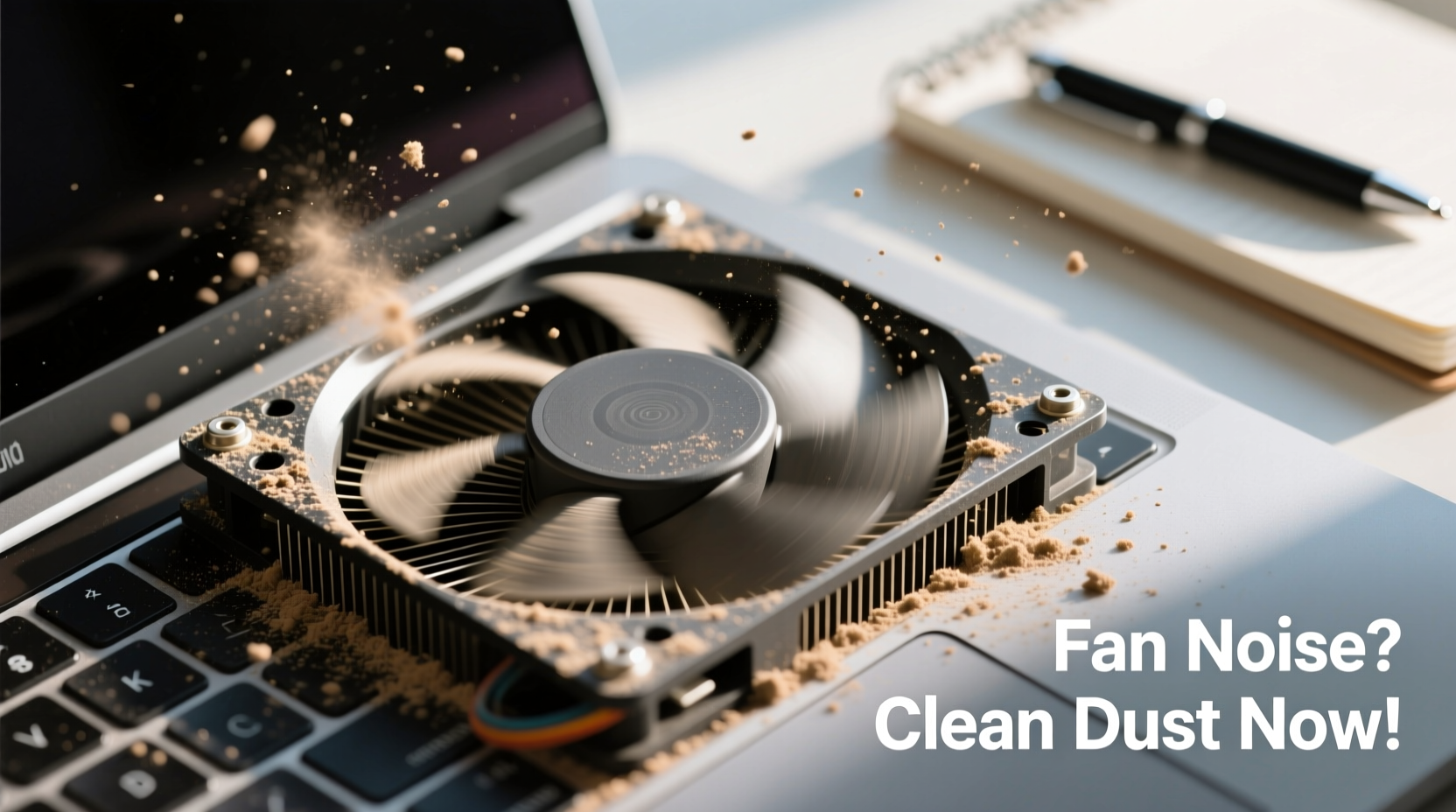
A laptop running quietly during normal use indicates efficient thermal regulation. When fans kick in aggressively without apparent reason, several factors may be at play:
- Dust buildup in vents and cooling system: Over time, dust accumulates inside the fan housing, heatsink, and exhaust ports, restricting airflow.
- Overheating due to blocked ventilation: Placing your laptop on soft surfaces like beds or couches blocks intake vents, causing rapid temperature rise.
- Background processes consuming resources: Malware, outdated software, or hidden applications may run silently but generate significant CPU load.
- Failing thermal paste: On older laptops, dried-out thermal paste between the processor and heatsink reduces heat transfer efficiency.
- Worn-out fan bearings: Mechanical wear can cause imbalance and noise, even if cooling function remains.
While software issues should not be ruled out, physical maintenance—especially dust removal—is often the most impactful first step.
Tip: Always shut down and unplug your laptop before attempting any cleaning. Never use compressed air while the device is powered on.Step-by-Step Guide to Safely Clean Dust from Your Laptop
Cleaning dust from your laptop doesn’t require professional tools, but it does demand care and precision. Follow this detailed process to minimize risk and maximize effectiveness.
- Power off and disconnect all sources: Shut down your laptop completely. Unplug the charger and, if possible, remove the battery (on older models).
- Prepare your workspace: Choose a clean, static-free surface. Use an anti-static wrist strap if available. Work in a well-lit area.
- Gather necessary tools: You’ll need:
- Compressed air canister (with straw attachment)
- Soft-bristled brush (e.g., clean paintbrush or toothbrush)
- Microfiber cloth
- Isopropyl alcohol (70% or higher) for external cleaning
- Small screwdriver set (if opening the case)
- Clean exterior vents and fans: Hold the laptop at an angle and spray short bursts of compressed air into intake and exhaust vents. Avoid prolonged spraying, which can overspin the fan and damage bearings.
- Use a brush for stubborn debris: Gently dislodge visible dust clumps with a soft brush. Do not insert metal objects.
- Wipe down the surface: Dampen a microfiber cloth with isopropyl alcohol and wipe around the keyboard, screen, and casing to remove grime.
- Open the back panel (optional): For deeper cleaning, consult your laptop’s service manual. Remove screws carefully and lift the panel. Focus on the fan blades, heatsink fins, and copper tubes.
- Clean internal components: Use compressed air and a brush to clear dust from the fan and heatsink. Be gentle—fan blades are fragile.
- Reassemble and test: Replace the panel, reconnect the battery (if removed), and power on. Monitor fan noise and temperature using tools like HWMonitor or Core Temp.
This routine should be performed every 6–12 months, depending on your environment. Users in dusty or pet-friendly homes may need to clean more frequently.
Checklist: Pre-Cleaning Safety & Preparation
Before starting, ensure you’re fully prepared. Use this checklist to avoid mistakes:
- ✅ Laptop is powered off and unplugged
- ✅ Battery removed (if accessible)
- ✅ Workspace is clean and well-lit
- ✅ All cleaning tools gathered and ready
- ✅ Compressed air canister shaken and tested briefly
- ✅ Anti-static precautions taken (wrist strap or grounded surface)
- ✅ Camera or notes app open to photograph screw placements (for disassembly)
Do’s and Don’ts of Laptop Dust Cleaning
Mistakes during cleaning can lead to hardware damage or voided warranties. Refer to this table to stay safe and effective.
| Do’s | Don’ts |
|---|---|
| Use short bursts of compressed air | Hold the can upside down—this releases liquid that can damage circuits |
| Clean in a well-ventilated area | Use household vacuum cleaners—they generate static and lack precision |
| Disassemble only if comfortable and covered by warranty terms | Force open panels or use excessive pressure on clips |
| Let the laptop sit for 5 minutes after cleaning before powering on | Spray liquids directly onto components |
| Check fan movement manually (gently spin blade with finger) after cleaning | Touch exposed circuitry with bare hands—oils can corrode over time |
Real Example: How Cleaning Transformed a Noisy Work Laptop
Consider Mark, a freelance graphic designer working from home. His three-year-old laptop began making loud whirring noises within minutes of startup—even when editing text documents. Task Manager showed CPU usage below 15%, ruling out software overload.
After ruling out malware and background apps, he decided to inspect the vents. Using a flashlight, he noticed thick layers of dust blocking the side exhaust. He followed the cleaning steps above, opening the bottom panel to access the fan and heatsink. What he found was alarming: a dense mat of pet hair and dust coating the copper heat pipes.
After careful cleaning with compressed air and a soft brush, the laptop booted up noticeably quieter. Surface temperatures dropped from 85°C to 63°C under idle conditions. The fan no longer spun at full speed unless rendering large files. A simple $10 can of air restored both comfort and performance.
“Thermal maintenance is as critical as software updates. A clean laptop runs cooler, lasts longer, and performs better.” — Dr. Lena Torres, Hardware Systems Engineer, MIT Lincoln Laboratory
When Cleaning Isn’t Enough: Other Causes of Fan Noise
Cleaning resolves the majority of fan noise issues—but not all. If your laptop remains loud after thorough dust removal, consider these possibilities:
- Poor power settings: High-performance mode keeps CPU clocks elevated, increasing heat output. Switch to “Balanced” or “Power Saver” in Windows or macOS Energy Saver preferences.
- Outdated BIOS or firmware: Manufacturers release updates that improve thermal throttling logic and fan control algorithms.
- Failing fan motor: A grinding or clicking sound suggests mechanical failure. Replacement may be required.
- Degraded thermal paste: On laptops over two years old, especially gaming models, reapplying thermal paste can reduce temperatures by 10–15°C.
- Malware or crypto-mining scripts: Run a full scan with trusted antivirus software. Some malicious programs run hidden processes that max out CPU.
Use monitoring tools like Open Hardware Monitor (Windows) or iStat Menus (macOS) to track real-time CPU temperature and usage. Consistently high idle temps (above 70°C) indicate deeper issues.
FAQ: Common Questions About Laptop Fan Noise
Can dust really make my laptop fan that loud?
Yes. Dust acts as insulation, trapping heat around the CPU and GPU. The system responds by increasing fan speed to compensate. Even a thin layer can raise internal temperatures significantly, especially in compact ultrabooks with limited airflow.
Is it safe to open my laptop to clean it?
For most users, cleaning exterior vents with compressed air is safest. If you’re technically confident and your model allows easy access (e.g., Lenovo ThinkPads, Dell Latitudes), internal cleaning is safe when done carefully. However, opening the device may void warranty if seals are broken. Check your manufacturer’s policy first.
How often should I clean my laptop?
Every 6 to 12 months is ideal. If you work in a dusty environment, near pets, or frequently use your laptop on soft surfaces, consider cleaning every 3–4 months. Regular maintenance prevents long-term damage and maintains optimal performance.
Conclusion: Take Control of Your Laptop’s Performance
A loud laptop fan isn’t something you have to live with. More often than not, it’s a sign of neglect—not obsolescence. With basic tools and a little time, you can restore quiet operation, improve efficiency, and extend your device’s usable life by years.
Start with simple external cleaning. If noise persists, consider deeper maintenance or professional servicing. Remember: heat is one of the biggest enemies of electronics. Keeping your laptop cool isn’t just about comfort—it’s about preserving its core functionality.
💬 Have you cleaned your laptop recently? Share your experience or ask questions in the comments—your insight could help others silence their noisy machines!