Laptop fans are essential for keeping internal components cool, but when they start sounding like a jet engine, it’s more than just annoying—it can signal deeper issues. A consistently loud fan may indicate poor ventilation, hardware strain, or software inefficiencies. While some noise is normal during intensive tasks, constant high-pitched whirring or grinding sounds suggest something needs attention. The good news is that most causes of excessive fan noise are fixable with proper care and smart troubleshooting.
Ignoring a noisy fan can lead to overheating, reduced performance, and even permanent hardware damage. However, many users respond by stuffing their laptops in freezers or blocking vents—mistakes that can do more harm than good. This guide walks through the real reasons behind loud laptop fans, separates myths from facts, and provides actionable, safe solutions to restore quiet operation.
Common Causes of Excessive Fan Noise
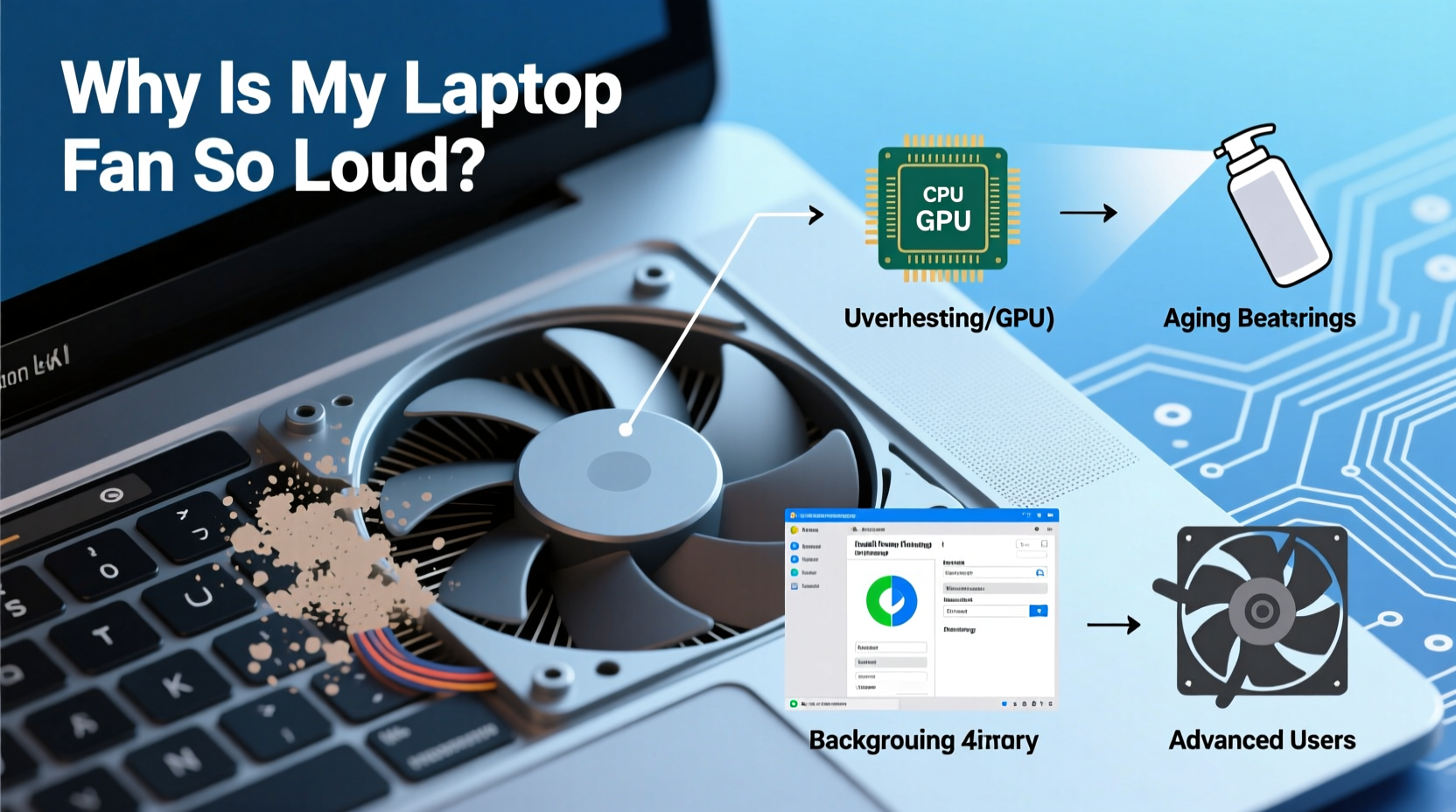
Laptop fans ramp up speed when internal temperatures rise. But persistent loud operation usually stems from one or more underlying factors. Identifying the root cause is key to applying the right fix.
- Dust buildup in vents and cooling system: Over time, dust clogs air intakes and heatsinks, reducing airflow and forcing the fan to work harder.
- High CPU or GPU usage: Resource-heavy applications like video editors, games, or background processes can push processors to maximum load, generating heat.
- Poor ventilation: Using a laptop on soft surfaces like beds or couches blocks intake vents, trapping heat inside.
- Failing thermal paste: On older laptops, dried-out thermal paste between the CPU and heatsink reduces heat transfer efficiency.
- Ambient temperature: Operating in hot environments makes cooling less effective, prompting the fan to run faster and longer.
- Outdated BIOS or firmware: Some power management and fan control features depend on updated system firmware.
- Fan hardware issues: Worn bearings or unbalanced blades can create unusual noises beyond typical whirring.
Step-by-Step Guide to Diagnose and Reduce Fan Noise
Before attempting repairs or cleaning, diagnose whether the issue is software-related, environmental, or hardware-based. Follow this logical sequence to isolate and resolve the problem safely.
- Check current system load: Open Task Manager (Windows) or Activity Monitor (Mac). Sort processes by CPU usage. Close any unnecessary high-load applications.
- Monitor internal temperatures: Use tools like HWMonitor (Windows), Macs Fan Control (Mac), or Core Temp to check CPU/GPU temps. Sustained readings above 85°C under load are concerning.
- Evaluate usage environment: Ensure the laptop is on a hard, flat surface. Avoid carpets, pillows, or confined spaces.
- Test with minimal background activity: Restart the laptop and don’t open any apps. If the fan remains loud, the issue is likely hardware or firmware related.
- Listen for abnormal sounds: Grinding, clicking, or rhythmic thumping may indicate physical fan damage.
- Update operating system and drivers: Install pending updates. Outdated graphics drivers or chipset firmware can cause inefficient power use and excess heat.
When Software Is the Culprit
Many cases of fan noise stem not from hardware failure but from runaway processes. Malware, bloated startup programs, or browser tabs consuming memory can keep the CPU active unnecessarily.
For example, a user reported their laptop fan running nonstop after installing a \"performance optimizer\" tool. In reality, the app ran constant background scans, spiking CPU use to 90%. Uninstalling it immediately reduced both temperature and noise.
“Over 60% of fan noise complaints we see in support tickets trace back to software misbehavior, not hardware defects.” — Raj Mehta, Senior Hardware Technician at TechCare Solutions
Safe Cleaning Methods to Improve Airflow
Dust accumulation is a leading cause of overheating and fan strain. Cleaning internal components can dramatically reduce noise—but only if done correctly.
What You’ll Need:
- Canned air (preferred over vacuum cleaners, which generate static)
- Small Phillips screwdriver (if opening the case)
- Microfiber cloth
- Isopropyl alcohol (70% or higher, for external wipe-downs)
External Cleaning (No Disassembly):
- Power off and unplug the laptop.
- Hold the can of compressed air upright and spray into intake and exhaust vents at a 45-degree angle.
- Use short bursts to avoid moisture buildup.
- Wipe down the exterior with a slightly damp microfiber cloth.
Internal Cleaning (Advanced – Proceed with Caution):
- Back up your data before disassembling.
- Consult your manufacturer’s service manual for disassembly steps.
- Remove the bottom panel carefully. Ground yourself to prevent static discharge.
- Spray canned air directly onto the fan blades and heatsink fins. Rotate the fan gently with a toothpick if needed.
- Reassemble and test.
Optimizing Settings to Reduce Heat Output
You don’t always need to open the laptop to reduce fan noise. Adjusting system settings can significantly lower thermal load.
| Setting | Action | Expected Benefit |
|---|---|---|
| Power Plan | Switch to “Balanced” or “Power Saver” mode | Reduces CPU clock speed and heat generation |
| Display Brightness | Lower to 60–70% | Screen accounts for ~30% of power draw |
| Background Apps | Disable auto-launching apps in Startup settings | Prevents hidden CPU usage |
| Fan Control (if supported) | Use tools like SpeedFan (Windows) or Macs Fan Control | Allows manual override of aggressive default profiles |
| Browser Tabs | Limit open tabs; use tab suspender extensions | Reduces RAM and CPU load |
One user reduced their fan runtime by 40% simply by switching from “High Performance” to “Balanced” power mode and closing unused Chrome tabs. The laptop stayed cooler and quieter during daily use, proving that small changes yield tangible results.
When to Consider Hardware Repairs or Upgrades
If cleaning and optimization don’t resolve the issue, deeper hardware intervention may be necessary. These options should only be attempted if your laptop is out of warranty or you’re comfortable with technical repairs.
Replacing Thermal Paste
On laptops more than 2–3 years old, thermal paste degrades and loses conductivity. Reapplying high-quality paste (like Arctic MX-4 or Noctua NT-H1) can drop CPU temperatures by 10–15°C, allowing the fan to run slower.
Upgrading to an SSD
Mechanical hard drives generate heat and consume more power than SSDs. Replacing an HDD with an SSD reduces overall system heat and improves responsiveness, indirectly lowering fan workload.
Fan Replacement
If the fan is physically damaged or making grinding noises, replacement is the safest long-term solution. OEM or reputable third-party fans are available online for most models.
“Reapplying thermal paste on a three-year-old gaming laptop brought its max temperature down from 98°C to 82°C. The difference in fan noise was night and day.” — Lena Torres, Independent PC Technician
Do’s and Don’ts of Laptop Cooling
To prevent future noise issues, follow these best practices.
| Do’s | Don’ts |
|---|---|
| Use a hard, flat surface for operation | Place the laptop on beds, blankets, or laps without a tray |
| Clean vents every 3–6 months | Ignore persistent grinding or clicking sounds |
| Use a cooling pad for extended sessions | Rely solely on cooling pads to fix blocked vents |
| Keep software and drivers updated | Apply extreme measures like freezer-cooling |
| Shut down instead of sleep when not used for hours | Run multiple VMs or render jobs without monitoring temps |
FAQ
Is it safe to disable the laptop fan?
No. Disabling the fan—even temporarily—risks immediate overheating and potential CPU throttling or shutdown. In extreme cases, it can cause permanent hardware damage. Always address the root cause instead of tampering with safety systems.
Can I use my laptop while it’s charging if the fan is loud?
Yes, but monitor the temperature. Charging adds thermal load, especially with high-performance tasks. If the fan becomes excessively loud during use, consider unplugging during heavy workloads or letting the battery drain slightly before resuming intensive tasks.
Why does my fan turn on randomly when doing simple tasks?
This often happens due to background processes like Windows Update, antivirus scans, or cloud sync services. Check Task Manager during these spikes to identify the culprit. Scheduling updates during off-hours can minimize disruptions.
Conclusion: Take Control of Your Laptop’s Performance and Peace
A loud laptop fan doesn’t have to be a permanent annoyance. By understanding the causes—whether dust, software bloat, or aging components—you can take targeted, safe actions to restore quiet operation. Regular maintenance, smart usage habits, and timely upgrades make a significant difference in both noise levels and device longevity.
Start with simple fixes: clean the vents, adjust power settings, and close unnecessary apps. If those don’t help, consider deeper cleaning or thermal paste replacement. Most importantly, never ignore persistent noise—it’s your laptop’s way of asking for help.
🚀 Your laptop deserves better. Apply one fix today and enjoy a quieter, cooler computing experience tomorrow. Share your success story or ask questions in the comments below.