There are few modern frustrations quite like a spotty Wi-Fi connection. Whether you're in the middle of a video call, streaming your favorite show, or simply trying to check email, an unstable network can bring daily life to a halt. The good news is that most Wi-Fi disconnections aren’t caused by irreparable hardware flaws or ISP failures—they’re often due to preventable issues that can be fixed with simple adjustments. Understanding the root causes and applying practical solutions can restore reliability to your home network without costly upgrades or technical expertise.
Common Causes of Wi-Fi Disconnections
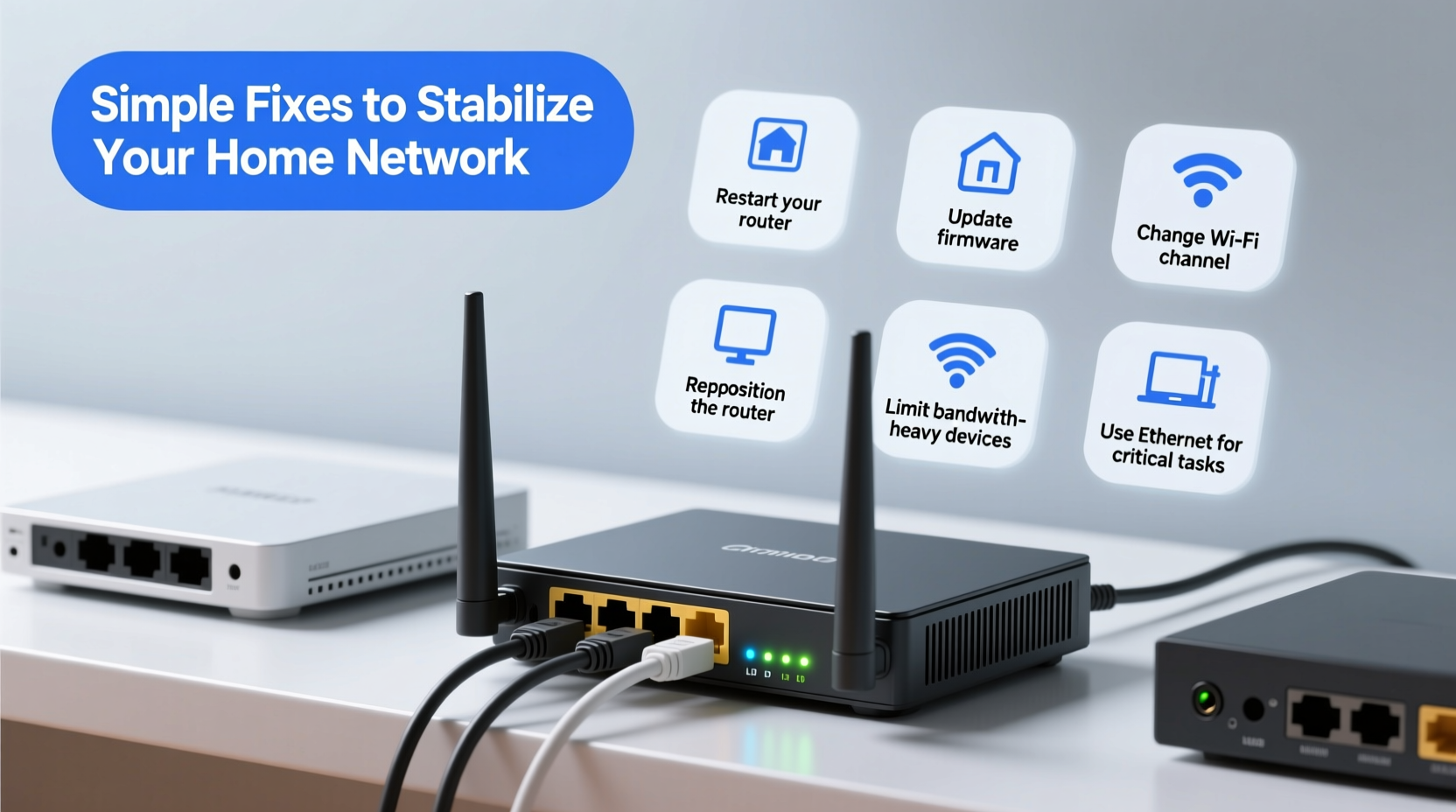
Before jumping into fixes, it's important to understand why your Wi-Fi might be dropping. Several factors—ranging from physical interference to outdated firmware—can disrupt signal stability. Identifying the likely culprit helps you apply targeted solutions instead of guessing at random fixes.
- Router placement: A router tucked behind furniture, near metal objects, or in a basement may struggle to distribute a strong signal.
- Interference from other devices: Microwaves, cordless phones, baby monitors, and even neighboring Wi-Fi networks operate on the same 2.4 GHz frequency band and can cause congestion.
- Outdated firmware: Routers, like any device, require regular software updates to maintain performance and security.
- Network overload: Too many connected devices can overwhelm your router’s processing power and bandwidth capacity.
- ISP issues: Occasional outages or throttling by your internet service provider can manifest as intermittent connectivity.
- DNS problems: Slow or unreliable DNS resolution can make it seem like Wi-Fi has dropped, even when the signal is present.
These issues don’t always act alone. Often, multiple small problems combine to create a persistent sense of instability. Addressing them systematically yields the best results.
Tip: If your Wi-Fi drops at the same time every day, check for scheduled router reboots or automatic updates set by your ISP.Step-by-Step Guide to Stabilize Your Wi-Fi Connection
Follow this structured approach to diagnose and fix recurring Wi-Fi disconnections. Each step builds on the last, ensuring no stone is left unturned.
- Restart your router and modem. Unplug both devices, wait 30 seconds, then plug the modem back in first. Once its lights stabilize, power up the router. This clears temporary glitches and resets network connections.
- Check for physical obstructions. Move your router to a central, elevated location away from walls, mirrors, and large appliances. Avoid placing it on the floor or inside cabinets.
- Switch Wi-Fi bands. If your router supports dual-band (2.4 GHz and 5 GHz), connect high-bandwidth devices like laptops and smart TVs to 5 GHz for faster, less congested performance. Reserve 2.4 GHz for smart home gadgets that prioritize range over speed.
- Update router firmware. Log into your router’s admin interface (usually via 192.168.1.1 or 192.168.0.1) and check for firmware updates under the \"Administration\" or \"Maintenance\" tab.
- Change your Wi-Fi channel. Use a free app like Wi-Fi Analyzer (Android) or NetSpot (Mac/Windows) to identify crowded channels. Manually switch your router to a less-used channel—preferably 1, 6, or 11 on 2.4 GHz, or any non-overlapping channel on 5 GHz.
- Limit connected devices. Disconnect unused devices or set up access schedules for children’s devices to reduce strain during peak hours.
- Set a static DNS. Replace your default DNS with a faster, more reliable one like Google DNS (8.8.8.8 and 8.8.4.4) or Cloudflare (1.1.1.1).
This sequence resolves the majority of common disconnection issues. Many users report noticeable improvements after just the first three steps.
Do’s and Don’ts for Long-Term Network Stability
Sustaining a stable Wi-Fi network requires consistent habits. The following table outlines key behaviors that either support or undermine your connection.
| Do | Don’t |
|---|---|
| Place your router centrally and off the floor | Hide your router in a closet or behind a TV stand |
| Update firmware every 3–6 months | Ignore firmware update notifications |
| Use wired connections for stationary devices (e.g., desktop PCs, gaming consoles) | Rely solely on Wi-Fi for high-bandwidth applications |
| Reboot your router monthly | Leave your router running for years without restarts |
| Enable Quality of Service (QoS) settings to prioritize critical traffic | Allow bandwidth-heavy downloads during video calls or streaming |
Adopting these practices reduces strain on your network and prevents many issues before they arise.
Real-World Example: Fixing a Persistent Drop Issue
Consider Sarah, a remote worker living in a two-story townhouse. She experienced frequent Wi-Fi dropouts every afternoon, just as her team meetings began. Her router was located in a corner of the basement laundry room, far from her home office upstairs. After testing several solutions, she discovered the issue wasn’t her ISP or device—but signal degradation due to distance and interference from her washing machine’s motor.
She moved the router to a shelf in the hallway on the main floor, switched her laptop to the 5 GHz band, and updated the firmware. She also changed the Wi-Fi channel from 6 to 11 to avoid overlap with her neighbor’s network. The result? No more dropouts during calls, and her overall speeds improved by nearly 40%.
Sarah’s case highlights how multiple minor issues can compound into a major problem—and how straightforward fixes can deliver dramatic improvements.
“Over 70% of home Wi-Fi issues stem from suboptimal placement and outdated configurations—not faulty hardware.” — James Lin, Senior Network Engineer at Broadband Insights Group
Essential Tips to Prevent Future Disconnections
Once you’ve restored stability, take proactive steps to maintain it. These tips help ensure your network remains resilient over time.
Tip: Label your router and modem with the purchase date and last firmware update to track maintenance needs. Tip: Enable guest Wi-Fi for visitors to reduce congestion on your primary network. Tip: Use Ethernet for stationary devices to free up Wi-Fi bandwidth and improve overall network efficiency.Additionally, consider investing in a mesh Wi-Fi system if your home exceeds 1,500 square feet or has thick walls. Unlike traditional routers, mesh systems use multiple nodes to blanket your space with seamless coverage, automatically switching devices to the strongest signal.
Troubleshooting Checklist: Quick Actions to Try Now
If your Wi-Fi drops right now, work through this checklist in order:
- ✅ Reboot your router and modem
- ✅ Move closer to the router to test signal strength
- ✅ Switch from 2.4 GHz to 5 GHz (or vice versa) on your device
- ✅ Forget the Wi-Fi network and reconnect
- ✅ Check if other devices are also disconnected
- ✅ Run a speed test using a wired connection to isolate the issue
- ✅ Log into your router and verify firmware is up to date
- ✅ Change your Wi-Fi channel using the router settings or a mobile app
- ✅ Contact your ISP if all else fails—there may be an outage or line issue
Completing this list typically identifies or resolves the root cause within 20 minutes.
Frequently Asked Questions
Why does my phone lose Wi-Fi but my laptop stays connected?
This often happens because different devices have varying Wi-Fi antenna strengths and band compatibility. Your phone might struggle with 5 GHz signals at longer ranges, while your laptop handles them better. Try connecting your phone to the 2.4 GHz network for improved stability at a distance.
Can too many devices crash my Wi-Fi?
Yes. Most consumer routers support up to 20–30 simultaneous connections, but performance degrades as more devices stream, download, or update in the background. Prioritize essential devices using QoS settings and disconnect idle ones to maintain responsiveness.
Is it normal for Wi-Fi to drop overnight?
No. Frequent nightly disconnections may indicate scheduled reboots, ISP maintenance windows, or overheating due to poor ventilation. Check your router’s temperature and review settings for automatic restarts. If the pattern persists, contact your ISP.
Conclusion: Take Control of Your Home Network Today
Wi-Fi disconnections don’t have to be a constant annoyance. With a clear understanding of the underlying causes and a methodical approach to troubleshooting, you can transform an unreliable connection into a stable, high-performing network. Most fixes require no special tools or technical knowledge—just attention to placement, settings, and routine maintenance.
Start with a router reboot and strategic relocation. Then fine-tune your setup by updating firmware, changing channels, and managing connected devices. Over time, adopt preventive habits like regular restarts and firmware checks to keep problems at bay.
🚀 Your home network is the backbone of modern living—don’t let instability slow you down. Apply these fixes today and enjoy seamless browsing, streaming, and working from home!