If you’ve noticed your Wi-Fi slowing down or dropping entirely every evening, you’re not alone. Many households experience frustrating connectivity issues after sunset. The problem often isn’t with the internet service itself but rather a combination of environmental, technical, and usage-related factors that intensify during nighttime hours. Understanding the root causes—and knowing how to address them—can restore reliable access when you need it most.
Why Nighttime Triggers Wi-Fi Disruptions
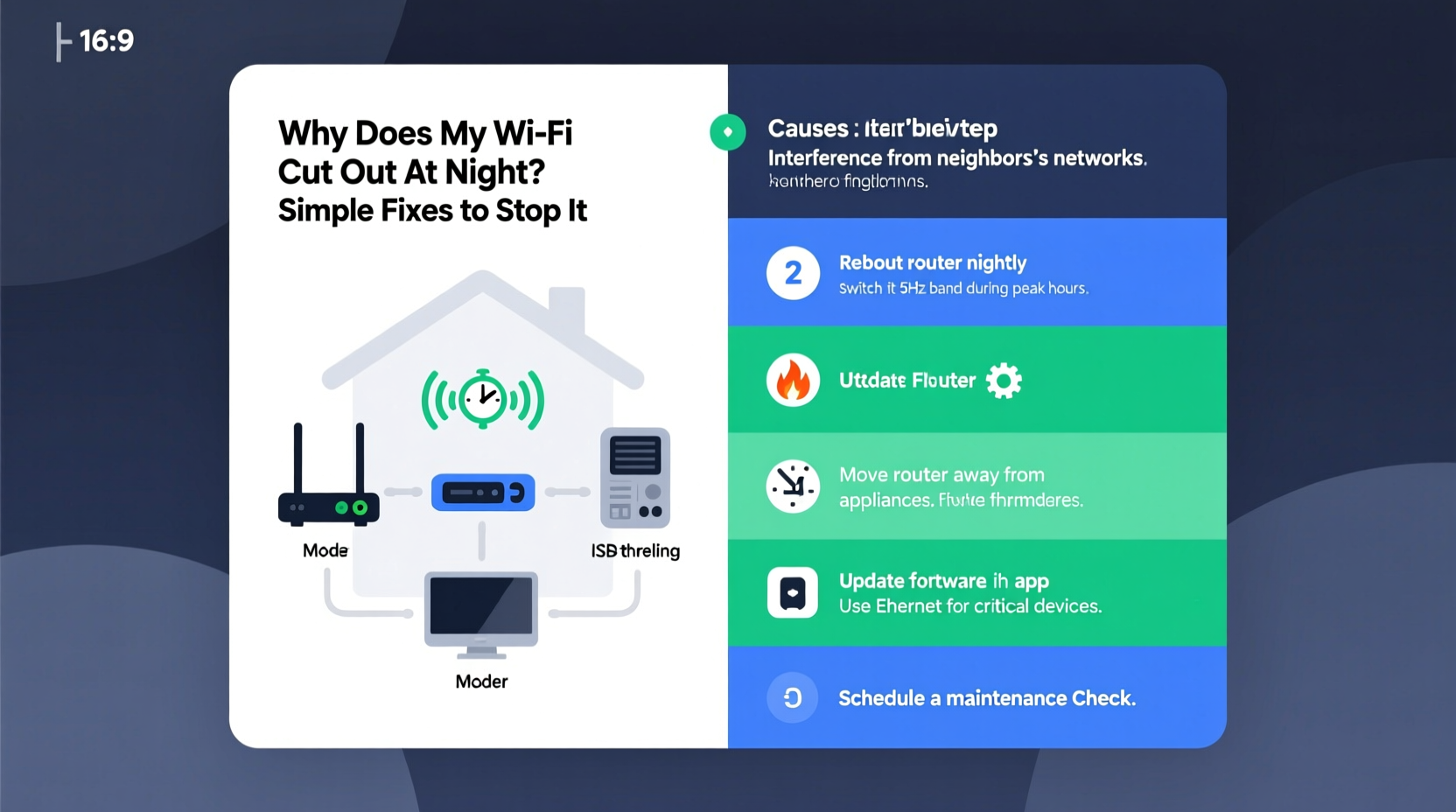
Wi-Fi performance doesn’t exist in a vacuum. It’s influenced by network congestion, device interference, router settings, and even human behavior patterns. At night, multiple factors converge to create what many call “the evening slowdown.”
One primary reason is increased bandwidth demand. As family members return home, they simultaneously stream video, play online games, browse social media, and download files. This surge in traffic overloads your router, especially if it's older or designed for smaller networks.
Additionally, neighboring Wi-Fi networks become more active. In densely populated areas like apartment complexes or suburban neighborhoods, dozens of routers operate on overlapping channels. When too many devices use the same 2.4 GHz band, interference increases significantly—leading to signal degradation and disconnections.
Tip: If your router supports dual-band (2.4 GHz and 5 GHz), connect high-bandwidth devices like smart TVs and gaming consoles to the less congested 5 GHz band.Common Causes of Nighttime Wi-Fi Dropouts
Several technical and behavioral factors contribute to poor Wi-Fi performance at night. Identifying which ones apply to your situation is the first step toward resolution.
- Network Congestion: Multiple users streaming, gaming, or downloading large files can saturate your available bandwidth.
- Router Overheating: Routers generate heat, and prolonged use without proper ventilation leads to thermal throttling or automatic shutdowns.
- Interference from Other Devices: Cordless phones, baby monitors, microwaves, and Bluetooth gadgets emit signals that disrupt Wi-Fi, especially on the 2.4 GHz frequency.
- Outdated Firmware: Manufacturers release updates to improve stability and security. An unupdated router may struggle under modern demands.
- Scheduled ISP Throttling: Some internet providers reduce speeds during peak hours to manage overall network load.
- Channel Overlap: In urban environments, nearby routers using the same channel cause co-channel interference, weakening your signal.
“Peak usage times expose hardware limitations and configuration flaws that remain hidden during low-traffic periods.” — Dr. Alan Reyes, Network Infrastructure Analyst
Step-by-Step Guide to Stabilize Your Nighttime Connection
Follow this structured approach to diagnose and fix recurring Wi-Fi dropouts. Each step builds on the previous one, leading to a comprehensive solution.
- Monitor Usage Patterns: Use your router’s admin interface or a tool like Fing or NetSpot to see which devices are connected and how much data they consume. Identify bandwidth hogs such as automatic cloud backups or software updates scheduled for evening hours.
- Reboot Your Router Regularly: Power cycling clears memory leaks and resets unstable connections. Set a timer to restart your router daily at 7 PM before peak usage begins.
- Update Router Firmware: Log into your router’s dashboard (usually via 192.168.1.1 or 192.168.0.1) and check for firmware updates. Enable auto-updates if available.
- Switch Wi-Fi Channels Manually: On the 2.4 GHz band, only channels 1, 6, and 11 don’t overlap. Use a Wi-Fi analyzer app to find the least crowded channel and set it manually in your router settings.
- Enable Quality of Service (QoS): QoS prioritizes certain types of traffic (e.g., video calls or gaming) over others (like file downloads). Allocate higher priority to essential devices during evening hours.
- Relocate Your Router: Place it centrally in your home, elevated, and away from walls, metal objects, and appliances. Avoid placing it inside cabinets or near microwaves and cordless phone bases.
- Limit Connected Devices: Disable Wi-Fi on unused devices or set up a guest network with restricted access to prevent unnecessary strain on your main network.
Do’s and Don’ts: Best Practices for Stable Evening Wi-Fi
| Do’s | Don’ts |
|---|---|
| Use wired Ethernet for stationary devices like desktops and smart TVs | Place your router next to a microwave or refrigerator |
| Set up parental controls to limit late-night streaming on kids’ devices | Run large downloads or cloud backups during peak hours |
| Invest in a mesh Wi-Fi system for larger homes | Ignore blinking lights or unusual noises from your router |
| Secure your network with WPA3 encryption to prevent unauthorized access | Leave default login credentials on your router |
| Test internet speed at different times using fast.com or speedtest.net | Assume slow Wi-Fi is always the ISP’s fault without testing locally |
Real-World Example: How One Family Fixed Their Evening Outages
The Thompson family in Austin, Texas, struggled with nightly Wi-Fi crashes between 7 and 9 PM. Netflix would buffer, Zoom calls dropped, and their smart home devices went offline. After ruling out ISP issues with a direct Ethernet speed test, they investigated further.
Using the Fing app, they discovered that two laptops were running automatic iCloud and Dropbox backups every evening at 7:30 PM—consuming nearly 80% of their 100 Mbps connection. They also found their router was tucked behind a bookshelf near a cordless phone base station, creating significant signal obstruction.
They moved the router to a central table, switched both laptops to manual backup schedules, enabled QoS to prioritize the living room TV, and changed their 2.4 GHz channel from 6 to 11 after detecting heavy neighbor congestion. Within two days, their evening disconnections stopped completely.
When Hardware Is the Hidden Culprit
Even with perfect settings, aging or underpowered equipment can sabotage performance. Routers older than three to four years often lack support for modern standards like MU-MIMO (multi-user, multiple input, multiple output) or beamforming, which help manage multiple devices efficiently.
Consider upgrading if:
- Your router still uses Wi-Fi 4 (802.11n).
- You have more than five active devices.
- It lacks a dedicated 5 GHz band.
- It frequently needs manual reboots.
For homes with coverage issues, a mesh Wi-Fi system (like Google Nest Wifi, Eero, or TP-Link Deco) provides seamless roaming and better load distribution. These systems use multiple nodes to eliminate dead zones and balance traffic intelligently.
Checklist: Fix Your Nighttime Wi-Fi in 10 Minutes
Complete this quick checklist tonight to start improving your connection immediately:
- ✅ Reboot your modem and router (unplug for 30 seconds).
- ✅ Move nearby electronics (microwaves, cordless phones) away from the router.
- ✅ Connect one device via Ethernet to test if the issue persists.
- ✅ Log into your router and check for firmware updates.
- ✅ Switch your 2.4 GHz Wi-Fi channel to 1, 6, or 11 (least congested).
- ✅ Disable any active downloads or cloud syncs on computers.
- ✅ Ensure no one is streaming 4K video on multiple devices unnecessarily.
- ✅ Run a speed test before and after changes to measure improvement.
Frequently Asked Questions
Can my internet provider throttle speeds at night?
Yes, some ISPs implement traffic shaping during peak hours to maintain network performance across users. Check your plan details for mentions of “network management” or “peak time throttling.” To confirm, run a wired speed test late at night and compare it to daytime results. A consistent drop may indicate throttling. Using a VPN can sometimes bypass this, though it adds overhead.
Why does my Wi-Fi work fine during the day but fail at night?
This pattern strongly suggests increased demand and interference. During the day, fewer people are home, and neighboring networks are less active. At night, local congestion spikes. Combine that with higher internal usage and potential router overheating, and instability becomes likely. Address both internal and external factors for a lasting fix.
Should I contact my ISP if my Wi-Fi drops at night?
Only after eliminating local causes. First, test with a hardwired connection—if the issue disappears, the problem is within your home network. If wired performance also degrades, contact your ISP with specific speed test results from different times. Be prepared to provide dates, times, and test data to help them investigate line quality or node congestion.
Conclusion: Take Control of Your Home Network
Nighttime Wi-Fi disruptions are common but rarely inevitable. With a methodical approach, most issues can be diagnosed and resolved using simple adjustments to your setup, habits, and hardware. Start with observation: monitor usage, identify bottlenecks, and test changes systematically. Small improvements—like relocating your router or rescheduling backups—can yield dramatic results.
Remember, a stable connection isn’t just about convenience—it affects remote work, education, healthcare apps, and home security. Taking action now ensures your household stays connected when it matters most.
🚀 Ready to reclaim your evenings? Pick one fix from this guide and apply it tonight. Share your results or questions in the comments below—your experience could help someone else solve their Wi-Fi woes.