In today’s digital workspace, screen real estate is no longer a luxury—it's a necessity. Whether you're analyzing spreadsheets, coding complex applications, editing video timelines, or managing multiple communication channels, how you arrange your display environment directly impacts focus, efficiency, and workflow continuity. Two dominant solutions dominate the conversation: ultra wide monitors and dual screen setups. Both promise enhanced productivity, but they deliver in fundamentally different ways. The real question isn’t just about preference—it’s about performance, ergonomics, task alignment, and long-term usability.
This article dives deep into the practical realities of both configurations, backed by user experience, ergonomic research, and real-world use cases. We’ll examine setup complexity, multitasking efficiency, software compatibility, eye strain, and cost-effectiveness to determine which option delivers a measurable edge in productivity.
Ergonomic Design and Physical Workspace Impact
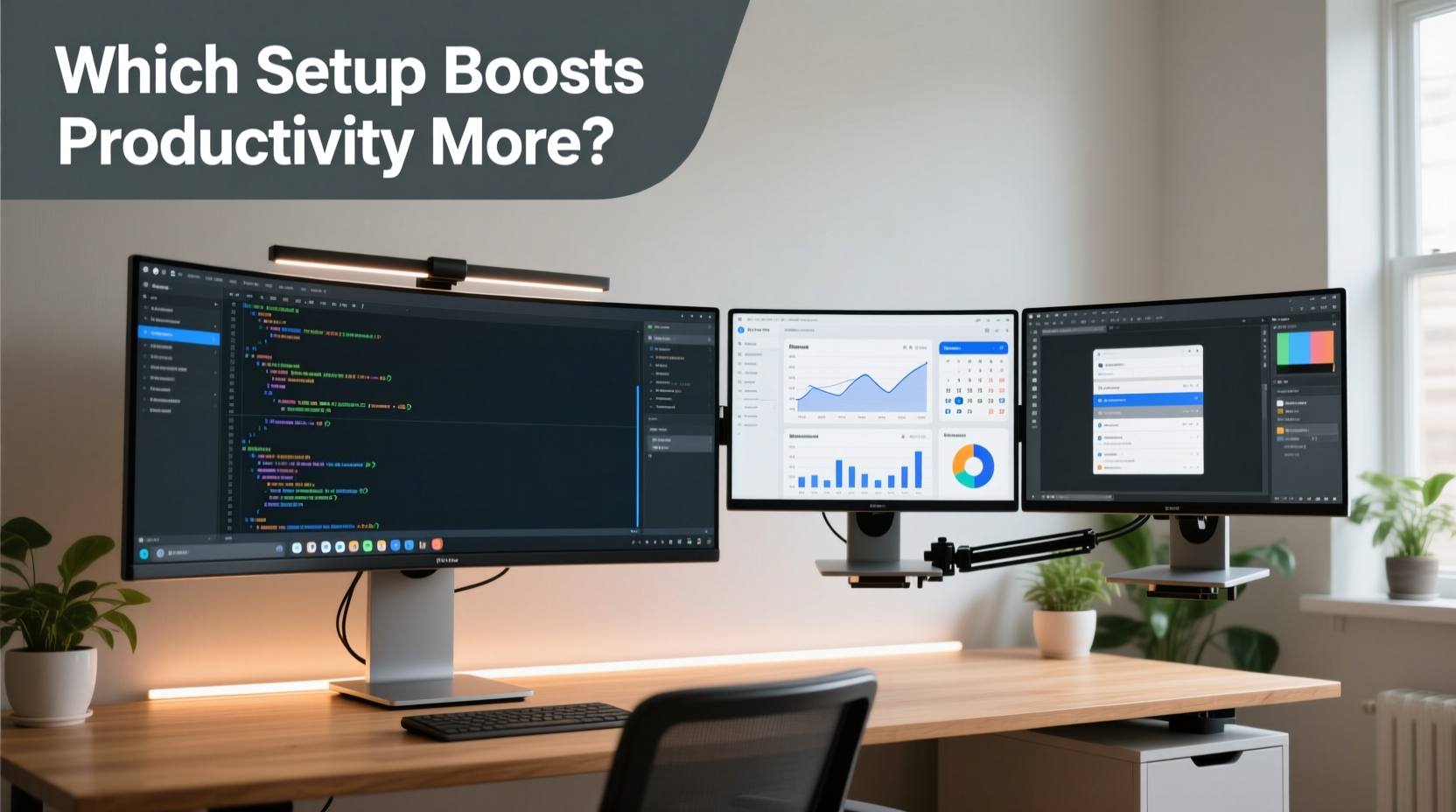
The physical layout of your workspace plays a critical role in sustained productivity. Poor monitor placement leads to neck strain, reduced concentration, and fatigue over time. Both ultra wide and dual monitor setups have distinct implications for posture, viewing angles, and desk space utilization.
An ultra wide monitor—typically ranging from 29 to 49 inches with aspect ratios like 21:9 or even 32:9—functions as a single, seamless display. This eliminates the bezel gap found in dual monitor setups, where two separate screens are placed side by side. That central bezel interruption can disrupt visual flow, especially when dragging windows across screens or tracking horizontal timelines in video or music editing.
Dual monitor users often report needing to adjust their chair position or turn their head slightly more frequently, leading to cumulative strain. According to Dr. Laura Simmons, an occupational health specialist at the Human Factors and Ergonomics Society:
“The human field of vision is naturally curved and wide, but not segmented. A continuous display aligns better with natural eye movement patterns, reducing micro-adjustments that contribute to fatigue during extended work sessions.” — Dr. Laura Simmons, Ergonomics Researcher
On the other hand, dual setups offer greater flexibility in positioning. You can angle each screen independently, optimizing for left-right dominance or ambient lighting conditions. However, this benefit comes at the cost of increased cable clutter, power draw, and potential mismatch in brightness or color calibration between panels.
Tip: Position the primary screen so the top third aligns with eye level and center it with your body to minimize neck rotation.Multitasking Efficiency and Workflow Integration
Productivity gains are most evident in multitasking scenarios. Consider a financial analyst reviewing live market data while updating forecasts in Excel and monitoring Slack messages. Or a graphic designer referencing mood boards on one screen while working in Photoshop on another. In these situations, screen management becomes mission-critical.
Ultra wide monitors excel in providing a panoramic view where applications can be tiled side-by-side without breaking continuity. For example, a 34-inch 21:9 display offers roughly the same horizontal space as two 16:9 24-inch monitors—but without the distracting middle bezel. This makes it ideal for timeline-based workflows such as video editing, audio production, and code version control.
However, true multitasking doesn't always mean side-by-side visibility. Sometimes, context switching is necessary. Dual monitor setups allow users to fully dedicate one screen to a single application (e.g., full-screen email or calendar) while using the other for active work. This separation reduces cognitive load by minimizing visual noise.
A mini case study illustrates this well:
Mini Case Study: Software Developer Transitioning from Dual to Ultra Wide
Mark R., a senior front-end developer based in Austin, used a dual 27-inch 1440p setup for three years. He recently switched to a 3440x1440 ultrawide after experiencing frequent headaches. Initially skeptical, he found that debugging React components alongside browser dev tools became significantly smoother. “The ability to see my entire component tree and console output in one uninterrupted sweep cut down my debugging time by nearly 30%,” he said. However, he missed having a completely separate screen for Zoom calls during pair programming. His solution? Virtual desktops combined with window snapping tools like Microsoft PowerToys or Magnet (on Mac), allowing him to toggle between focused coding and collaboration views efficiently.
Performance and Compatibility Across Use Cases
The optimal display configuration depends heavily on your profession and daily tasks. Below is a comparative table outlining strengths and limitations across key professional roles.
| Use Case | Ultra Wide Advantage | Dual Screen Advantage |
|---|---|---|
| Video Editing | Seamless timeline spanning full width; fewer interruptions from bezels | Limited unless using very large paired monitors; risk of misalignment |
| Programming | Code editor + terminal + documentation side-by-side in one view | Better isolation of environments (e.g., IDE on one, server logs on second) |
| Data Analysis | Wide spreadsheets visible without constant horizontal scrolling | Can run dashboard on one screen, raw data on the other |
| Graphic Design | Panoramic canvas preview with toolbars docked vertically | One screen for design app, one for asset libraries or client feedback |
| Content Writing | Research material and draft visible simultaneously | Distraction-free writing on one screen, references on the other |
| Gaming + Streaming | Immersive gameplay with chat/dashboard on split side | Clean separation between game (full screen) and OBS/stream tools |
While ultra wides shine in linear, expansive workflows, dual monitors offer superior compartmentalization. For roles requiring strict separation between sensitive information (like finance or legal work), dual setups provide clearer visual boundaries that help prevent accidental exposure.
Total Cost of Ownership and Setup Complexity
Cost is often a deciding factor. At first glance, dual monitors may seem cheaper—two mid-range 24-inch 1080p panels can cost less than a single premium ultrawide. But total cost includes more than just purchase price.
- Cables and Ports: Dual setups require two video inputs (HDMI/DisplayPort), doubling cable needs and taxing GPU outputs.
- Mounting Solutions: A sturdy dual-arm mount costs more than a single stand or VESA attachment.
- Calibration Tools: Matching color profiles across two separate units often requires hardware calibration devices.
- Power Consumption: Two monitors consume more energy than one, increasing long-term operational costs.
In contrast, a single ultra wide simplifies cabling, reduces desk footprint, and ensures uniform image quality out of the box. Premium models now come with built-in USB hubs, KVM switches, and PiP/PbP (Picture-in-Picture/Picture-by-Picture) modes that mimic dual-monitor functionality—allowing you to display inputs from two different computers on one screen.
Tip: Look for ultrawide monitors with PbP support if you work across multiple machines—it effectively gives you dual-screen benefits without the hardware sprawl.Step-by-Step: Choosing the Right Setup for Your Needs
Follow this decision framework to identify the best fit for your workflow:
- Assess Your Primary Tasks: List your top three daily activities (e.g., coding, email, video conferencing).
- Evaluate Horizontal Demand: Do you frequently scroll left-to-right? If yes, ultra wide likely suits you better.
- Measure Desk Space: Ensure adequate depth and width. Ultrawides need at least 32 inches of clear front space.
- Check GPU Output: Confirm your graphics card supports high-resolution ultrawide formats (e.g., DisplayPort 1.4 for 3440x1440 at 100Hz+).
- Test Simulated Workflows: Use virtual desktop tools to simulate tiling behavior before investing.
- Budget for Accessories: Include mounts, cables, and calibration in your total estimate.
- Start with One, Then Expand: Begin with a high-quality ultrawide; add a secondary vertical monitor later if needed.
This phased approach minimizes waste and allows adaptation based on actual usage patterns rather than assumptions.
FAQ: Common Questions Answered
Can I use an ultra wide monitor like dual screens?
Yes. Most operating systems support advanced window snapping. Tools like FancyZones (in PowerToys) let you divide an ultrawide into custom regions mimicking two or more virtual monitors. Some ultrawides also support Picture-by-Picture (PbP), letting you input from two sources simultaneously.
Do dual monitors cause more eye strain than ultrawides?
They can. The constant refocusing required when shifting between two physically separate displays—especially if they differ in brightness or height—can increase visual fatigue. A unified ultrawide reduces these transitions, promoting smoother eye movement.
Is 21:9 better than 16:9 for productivity?
For many tasks, yes. A 21:9 aspect ratio provides up to 30% more horizontal pixels than a standard 16:9 display of similar diagonal size. This extra width reduces the need for horizontal scrolling in documents, spreadsheets, and timelines—directly improving reading speed and navigation efficiency.
Final Verdict: Which Boosts Productivity More?
The evidence points clearly toward ultra wide monitors as the superior choice for most knowledge workers seeking genuine productivity gains. Their seamless design, reduced ergonomic stress, and efficient use of space make them ideal for modern workflows dominated by horizontal content and multitasking.
That said, dual screen setups retain value in specific contexts—particularly when strict application isolation, budget constraints, or legacy hardware limit options. They also serve well as stepping stones toward more integrated solutions.
The future of productivity displays lies in intelligent integration. High-end ultrawides now combine expansive real estate with smart features like automatic dimming, blue light reduction, and multi-device switching—offering the best of both worlds. As software continues to evolve with better multi-window management, the functional gap between dual screens and ultrawides will only widen in favor of the latter.
Recommended Checklist Before Upgrading
- ✅ Audit current screen usage patterns (apps used, window arrangements)
- ✅ Measure available desk space and viewing distance
- ✅ Verify GPU compatibility with desired resolution and refresh rate
- ✅ Research models with PbP/PiP if using multiple devices
- ✅ Test snapping tools or virtual desktops to simulate new layout
- ✅ Budget for mounting, cabling, and potential calibration tools
- ✅ Prioritize panel type: IPS for color accuracy, VA for contrast, OLED for premium clarity
Conclusion
The debate between ultra wide monitors and dual screen setups isn’t merely technical—it’s about how technology serves human performance. While both configurations expand your digital workspace, ultra wides do so with greater cohesion, comfort, and long-term sustainability. By eliminating physical and visual barriers between applications, they support deeper focus and faster task execution.
If you're serious about maximizing productivity, consider upgrading to a well-calibrated ultrawide monitor as your primary display. Pair it with effective window management software, and you’ll gain the flexibility of dual screens without their drawbacks. It’s not just an equipment change—it’s a workflow transformation.
💬 Have you made the switch from dual monitors to an ultrawide—or vice versa? Share your experience, tips, or lessons learned in the comments below. Your insights could help others make a smarter, more productive choice.