
As television technology evolves, many older smart TVs lose support for modern streaming apps or become sluggish and difficult to navigate. For seniors who rely on familiar routines and straightforward interfaces, this shift can be frustrating. Fortunately, streaming devices offer a reliable solution—breathing new life into aging TVs while delivering intuitive, accessible experiences tailored to older users.
Choosing the right streaming device isn’t just about performance; it’s about usability, voice assistance, remote simplicity, and app availability. This guide explores the top options that combine plug-and-play functionality with senior-friendly design, ensuring that comfort, clarity, and ease of use are prioritized over complex features.
Why Older Smart TVs Need Streaming Devices
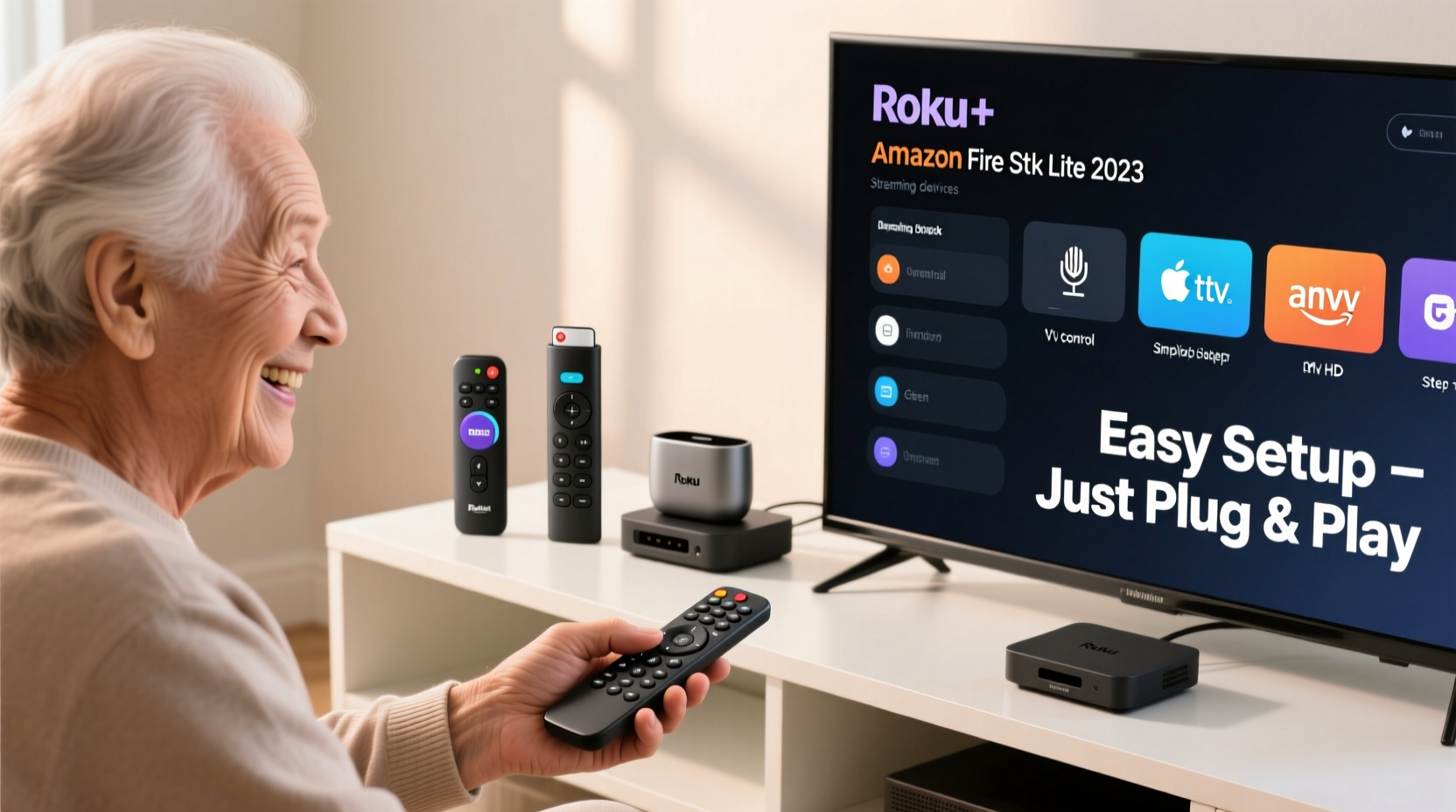
Many smart TVs manufactured before 2018 run outdated operating systems that no longer receive updates or support popular streaming services like Netflix, Hulu, or Disney+. Over time, these built-in platforms become slow, unresponsive, or incompatible with newer app versions. Additionally, their user interfaces often lack accessibility features such as large text, high contrast, or voice control—elements crucial for older viewers.
Streaming devices bypass these limitations by connecting directly to your TV via HDMI, transforming it into a modern streaming hub. They’re typically more powerful than older smart TV processors, load apps faster, and offer better integration with assistive technologies. Most importantly, they come with remotes designed for simplicity, reducing confusion and enhancing independence.
Tip: Always check if your TV has an available HDMI port and supports HDCP 2.2 (for HD/4K content) before purchasing a streaming device.Key Features That Matter for Seniors
Not all streaming devices are created equal when it comes to accessibility. For older adults, especially those with vision, hearing, or dexterity challenges, certain design elements make a significant difference in daily usability.
- Simple Remote Controls: Large buttons, clear labeling, minimal clutter, and dedicated power/volume controls reduce cognitive load.
- Voice Assistance: Voice-enabled remotes allow hands-free searching, launching apps, or adjusting volume using natural speech.
- High-Contrast Menus: Operating systems with dark mode, larger fonts, and readable icons improve visibility.
- Built-in Accessibility Settings: Closed captioning shortcuts, audio descriptions, screen readers, and mono audio support enhance inclusivity.
- Reliable Wi-Fi & Setup Process: Devices with guided onboarding and strong wireless connectivity minimize technical hurdles during installation.
“Accessibility in tech isn’t just convenience—it’s dignity. A well-designed streaming interface allows seniors to enjoy entertainment independently.” — Dr. Linda Park, Gerontechnology Researcher, University of Michigan
Top 5 Streaming Devices for Older Users
The following devices stand out for their balance of affordability, ease of use, and senior-focused features. Each has been evaluated based on real-world usability, customer feedback from older users, and compatibility with legacy TVs.
| Device | Best For | Remote Simplicity | Voice Control | Price Range |
|---|---|---|---|---|
| Roku Express 4K+ | Beginners, budget-conscious users | ★★★★★ | Yes (voice search) | $35–$45 |
| Amazon Fire TV Stick 4K Max | Amazon Prime subscribers, Alexa users | ★★★★☆ | Yes (full Alexa integration) | $55–$70 |
| Apple TV 4K (Siri Remote) | iOS users, premium experience | ★★★☆☆ | Yes (Siri-powered) | $129–$179 |
| Google Chromecast with Google TV (HD) | YouTube, Android fans | ★★★★☆ | Yes (Google Assistant) | $30–$50 |
| NVIDIA Shield TV (Compact) | Future-proofing, advanced needs | ★★★☆☆ | Yes (Google Assistant) | $180 |
Roku Express 4K+ – The Gold Standard for Simplicity
Roku consistently ranks at the top for user-friendliness. The Express 4K+ model is affordable, delivers sharp picture quality up to 4K HDR, and features one of the clearest home screens in the industry. Its remote includes dedicated buttons for major services like Netflix, Disney+, and PBS, reducing the need to scroll through menus.
The Roku interface uses large tiles, consistent layout, and excellent voice search capabilities. Simply press the microphone button and say “Watch Hallmark movies” or “Turn on captions,” and the system responds accurately. It also supports private listening via headphones connected to the remote (on select models), ideal for nighttime viewing without disturbing others.
Amazon Fire TV Stick 4K Max – Best for Alexa Integration
If the user already owns Amazon Echo devices or shops frequently on Amazon, this stick offers seamless continuity. The remote includes direct access to Alexa, allowing seniors to ask questions, control smart home devices, or launch shows using only their voice.
The Fire OS interface is slightly busier than Roku’s, but recent updates have improved menu organization. With adaptive brightness and motion-sensing remote options (on higher-end models), it caters well to varying abilities. However, some ads appear on the home screen—a minor trade-off for its low cost and deep ecosystem integration.
Setting Up a Streaming Device: A Step-by-Step Guide
Installing a streaming device doesn’t require technical expertise. Follow this simple process to get started:
- Gather Equipment: Ensure you have the streaming stick, power adapter, HDMI cable (if needed), and Wi-Fi network details.
- Connect to TV: Plug the device into an available HDMI port. Use the included extender if space is tight behind the TV.
- Select Input Source: Use your TV remote to switch to the correct HDMI input (e.g., HDMI 1).
- Power On: Connect the power adapter to an outlet or USB port on the TV.
- Follow On-Screen Prompts: Choose language, connect to Wi-Fi, and sign in or create an account (Roku, Amazon, etc.).
- Update Software: Allow the device to download any pending updates automatically.
- Add Streaming Apps: Navigate to the app store and install desired services (Netflix, YouTube, Hulu, etc.).
- Enable Accessibility Features: Turn on closed captions, increase text size, or activate screen reader functions under settings.
Mini Case Study: Mary Restarts Her Viewing Routine at 78
Mary Thompson, a 78-year-old retiree from Ohio, stopped watching her favorite daytime dramas two years ago when her 2014 Samsung smart TV could no longer load Hulu or HBO Max. She relied on DVDs until her grandson gifted her a Roku Express 4K+.
“I was nervous at first,” Mary said. “But he set it up in 15 minutes, showed me how to press the red button to go home, and taught me to say ‘Find Hallmark Channel’ into the remote. Now I do it myself every day.”
Within a week, Mary was navigating between five apps independently. Her confidence grew so much that she began exploring documentaries on PBS and even joined a virtual book club that streams films weekly. “It gave me back my routine—and my social connection,” she added.
Checklist: Preparing Your Streaming Experience for Senior Use
Before handing over the remote, ensure the following steps are completed:
- ✅ Test internet speed (minimum 10 Mbps for HD streaming)
- ✅ Mount the streaming device securely (use adhesive pad or HDMI extender)
- ✅ Enable high-contrast mode or dark theme in system settings
- ✅ Increase subtitle size and enable auto-captioning
- ✅ Program universal remote (if applicable) to control both TV and streaming device
- ✅ Bookmark 3–5 favorite apps on the home screen
- ✅ Write down login credentials in a secure, visible place
- ✅ Demonstrate how to restart the device if frozen (unplug for 10 seconds)
Frequently Asked Questions
Can I use a streaming device with a non-smart TV?
Absolutely. As long as your TV has an HDMI port and can display video input, any modern streaming device will work. You may need a separate way to control volume (via soundbar, receiver, or analog remote).
Do I need a fast internet connection?
For standard HD content, a stable connection of at least 10 Mbps is sufficient. For 4K streaming, aim for 25 Mbps or higher. If Wi-Fi signal is weak near the TV, consider using a Wi-Fi extender or opting for a model with Ethernet adapter support (like the Fire TV Stick 4K Max).
Are there devices specifically made for seniors?
While no mainstream brand markets a “senior-only” device, platforms like Roku and Amazon Fire TV lead in accessibility. Third-party accessories, such as oversized remotes with Braille labels or voice-guided tutorials, further enhance usability.
Final Thoughts and Call to Action
Access to entertainment should never diminish with age. Modern streaming devices empower seniors to reclaim control over what they watch, when they watch it, and how easily they can navigate their options. Whether it’s reconnecting with beloved shows, discovering new interests, or staying mentally active through documentaries and news, the right device makes all the difference.
The key lies not in cutting-edge specs, but in thoughtful design—large text, responsive voice commands, and logical layouts that respect the user’s pace and preferences. Devices like the Roku Express 4K+ and Amazon Fire TV Stick 4K Max prove that simplicity and capability can coexist.
💬 Have a parent or loved one struggling with their TV? Share this guide and help them rediscover the joy of effortless streaming. Have tips from your own experience? Leave a comment below—we’d love to hear how you’ve made tech work for older adults.