
Capturing what’s on your screen is one of the most practical digital skills you can master. Whether you're troubleshooting an error, sharing a funny message, documenting a workflow, or creating visual guides, screenshots save time and improve communication. While both Windows and macOS offer multiple built-in tools for this task, many users only scratch the surface of what’s possible. This guide dives deep into every method available, from basic keyboard shortcuts to advanced annotation and automation features—so you can capture exactly what you need, when you need it.
Why Screenshots Matter in Daily Use
A well-timed screenshot can replace paragraphs of explanation. In remote work environments, customer support interactions, academic research, or personal documentation, visuals often convey information more clearly than words. According to usability experts at Nielsen Norman Group, “Visual evidence reduces cognitive load and accelerates understanding.” That means sending a screenshot of a software bug is faster and clearer than describing it in text.
Beyond clarity, screenshots also serve as digital records. They help preserve fleeting online content, verify transactions, or archive social media activity. With the right technique, anyone can turn their computer into a precision capture tool—no extra software required.
Screenshot Methods on Windows: From Basic to Advanced
Windows offers several ways to take screenshots depending on your version (Windows 10 and 11 are covered here), hardware, and needs.
1. Print Screen (PrtScn) Key – Full-Screen Capture
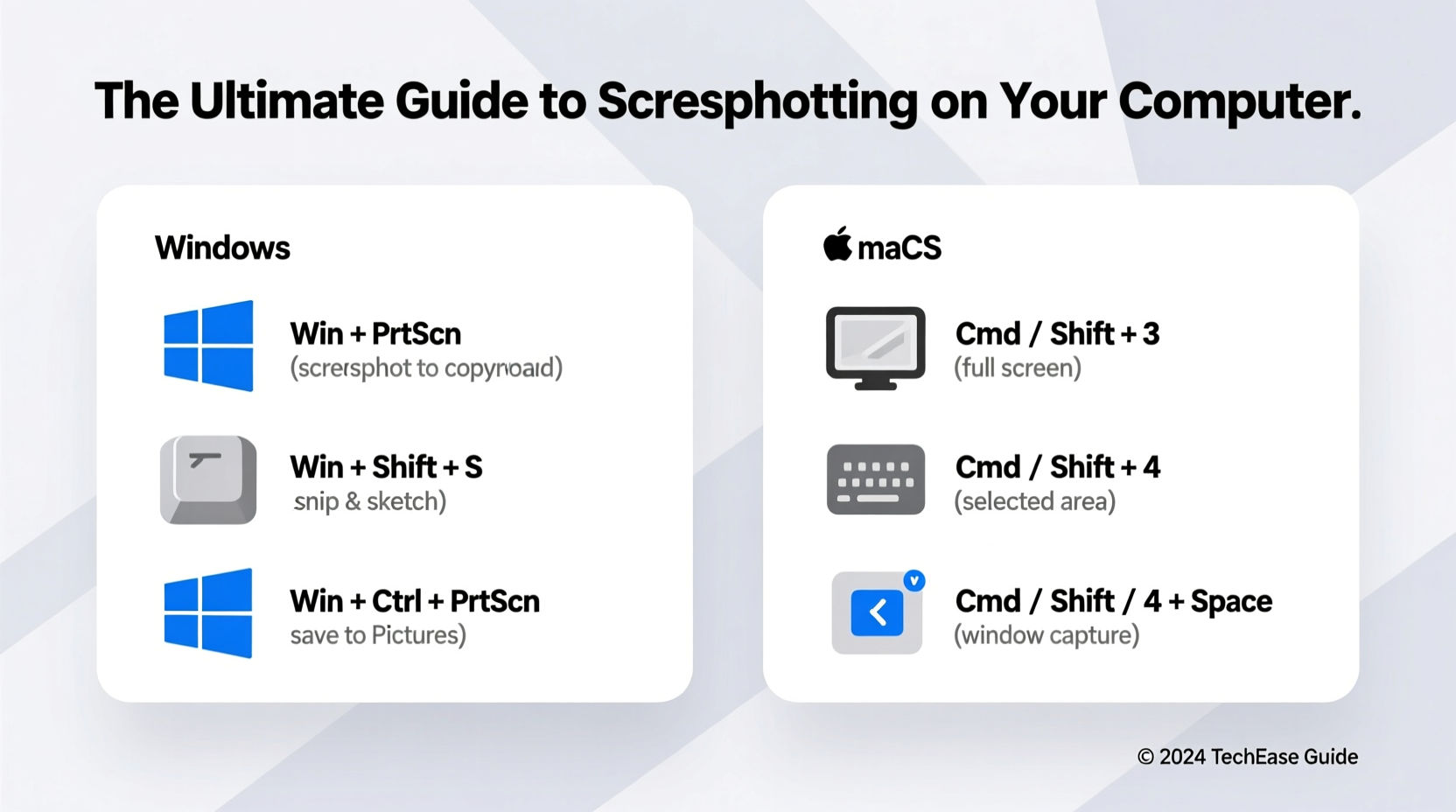
Pressing PrtScn copies the entire screen to your clipboard. You can then paste it into any application like Word, Paint, or email using Ctrl+V. This method doesn’t automatically save the image—it only copies it.
2. Alt + PrtScn – Active Window Only
This shortcut captures only the currently active window, excluding the background. It's ideal for focusing on one app without distractions. Like the standard PrtScn, it copies to the clipboard and requires pasting manually.
3. Windows + PrtScn – Save Full Screen Automatically
This combination takes a full-screen screenshot and saves it directly to your Screenshots folder inside Pictures. The screen briefly dims to confirm the capture. No copying or pasting needed.
4. Windows + Shift + S – Snip & Sketch Tool
One of the most powerful tools in Windows, this opens a toolbar that lets you select a portion of the screen, a specific window, or a freeform shape. After capturing, the image appears in a small editor where you can annotate, crop, or copy it. The default save location is the clipboard, but you can paste and save it manually.
5. Game Bar (Windows + G)
Originally designed for gamers, the Game Bar works with most desktop apps. Press Windows + G, then click the camera icon or press Windows + Alt + R to start recording. To take a still screenshot, use Windows + Alt + PrtScn. Screenshots are saved in the Captures folder under Videos > Gaming.
Tip: Customize your screenshot folder location by going to Settings > System > Storage > Advanced storage settings > Save locations.Screenshot Tools on Mac: Simplicity Meets Power
macOS has long been praised for its intuitive screenshot system. Since macOS Mojave, Apple unified all screenshot options under one menu, accessible via keyboard shortcuts or the dedicated Screenshot app.
1. Command + Shift + 3 – Full Screen
Takes a picture of the entire display and saves it directly to your desktop (by default). A thumbnail preview appears briefly in the corner; clicking it allows immediate editing.
2. Command + Shift + 4 – Select an Area
Turns your cursor into a crosshair. Drag to select any rectangular area. Release to capture. Add **Spacebar** after dragging to switch to window capture mode—click any open window to snap it with a drop shadow effect.
3. Command + Shift + 5 – Full Control Panel
Opens the Screenshot app with options to:
- Capture screen or specific windows
- Record the screen (full or selected portion)
- Set timers (5 or 10 seconds)
- Choose save location (desktop, documents, etc.)
- Show or hide mouse pointer
“Apple’s screenshot interface strikes the perfect balance between simplicity and control—ideal for both beginners and professionals.” — David Lin, UX Designer at TechFlow Studios
Step-by-Step Guide: How to Annotate and Share a Screenshot
Capturing is just the first step. Often, you’ll want to highlight key areas, add notes, or share securely. Here’s how to do it efficiently:
- Capture the screen using your preferred method (e.g., Windows + Shift + S or Cmd + Shift + 4).
- Edit immediately: On Windows, use the built-in markup tools in Snip & Sketch. On Mac, click the thumbnail preview to open Markup tools—draw, highlight, add text, or insert shapes.
- Save or copy: Once edited, save the file or copy it to the clipboard.
- Share smartly: Instead of attaching large files, consider uploading to cloud services like Google Drive, Dropbox, or OneDrive and sharing the link. For quick internal messages, paste directly into Slack, Teams, or email.
- Organize later: Create a temporary folder called “Pending Screenshots” and clear it weekly to avoid clutter.
Comparison Table: Windows vs. Mac Screenshot Features
| Feature | Windows | Mac |
|---|---|---|
| Full-screen capture | Windows + PrtScn | Cmd + Shift + 3 |
| Partial capture | Windows + Shift + S | Cmd + Shift + 4 |
| Window-only capture | Alt + PrtScn | Cmd + Shift + 4 + Spacebar |
| Screen recording | Game Bar (Win + Alt + R) | Cmd + Shift + 5 → Record |
| Annotation tools | Snip & Sketch editor | Markup (via thumbnail or Screenshot app) |
| Timer delay | No native timer (requires third-party tools) | 5 or 10 seconds (in Screenshot app) |
| Default save location | Pictures > Screenshots | Desktop |
Common Mistakes to Avoid When Taking Screenshots
- Forgetting privacy: Always blur sensitive data like passwords, personal messages, or financial details before sharing.
- Ignoring file size: Large screenshots slow down emails and chats. Crop unnecessary areas or compress images if needed.
- Overusing full-screen grabs: Focus on the relevant section. A cropped image is easier to understand.
- Not checking quality: Zoomed displays or high-DPI screens may produce blurry pastes. Use native-saving methods when possible.
- Missing the moment: Set up your preferred shortcut ahead of time—especially for time-sensitive alerts or pop-ups.
Real Example: Solving a Software Bug with a Screenshot
Sarah, a freelance graphic designer, encountered a recurring crash in her design software. She tried explaining the issue over chat but wasn’t getting useful responses. Then she used Command + Shift + 4 to capture the exact error message, added a red arrow using Markup to point to the problematic button, and shared it in the support forum. Within minutes, another user recognized the issue and provided a fix: resetting preferences. The visual context made all the difference.
FAQ: Common Screenshot Questions Answered
Where do my screenshots go?
On Windows, they’re saved in Pictures > Screenshots. On Mac, they appear on your Desktop by default, unless changed in Screenshot settings (Cmd + Shift + 5 > Options).
Can I change the file format of screenshots?
Yes. On Mac, hold Option while choosing a save location in the Screenshot app to select PNG, JPEG, TIFF, PDF, or HEIF. Windows defaults to PNG, but you can convert formats using Photos or Paint.
How do I take a screenshot of a scrolling webpage?
Neither Windows nor Mac supports full-page scrolling screenshots natively. However, you can use browser extensions like GoFullPage (Chrome), FireShot (Firefox), or Edge’s built-in Web Capture to capture entire pages.
Conclusion: Master the Art of the Digital Snapshot
Screenshots are more than convenience—they’re essential tools for modern digital life. By mastering the native capabilities of your operating system, you eliminate reliance on third-party apps and streamline your workflow. Whether you're on Windows or Mac, the power to capture, edit, and share is already at your fingertips. Take time today to practice the shortcuts, customize your settings, and integrate these techniques into your daily routine. The next time you need to explain something quickly, you’ll be ready—with one clean, clear image.
💬 Which screenshot method do you use most? Share your favorite tip or trick in the comments below!