Reverse image search is one of the most powerful tools available to smartphone users today. Whether you're trying to identify a product, verify the authenticity of a photo, track down the source of an image, or simply learn more about something you’ve seen online, this technology puts answers at your fingertips. Unlike traditional text-based searches, reverse image search allows you to use a picture as your query—making it faster, more intuitive, and often more accurate.
While many people assume this function is limited to desktop computers, modern smartphones are fully equipped to perform reverse image searches with just a few taps. The key lies in knowing which apps to use, how to access the feature correctly, and understanding its limitations. This guide breaks down everything you need to know to master reverse image search directly from your mobile device.
How Reverse Image Search Works
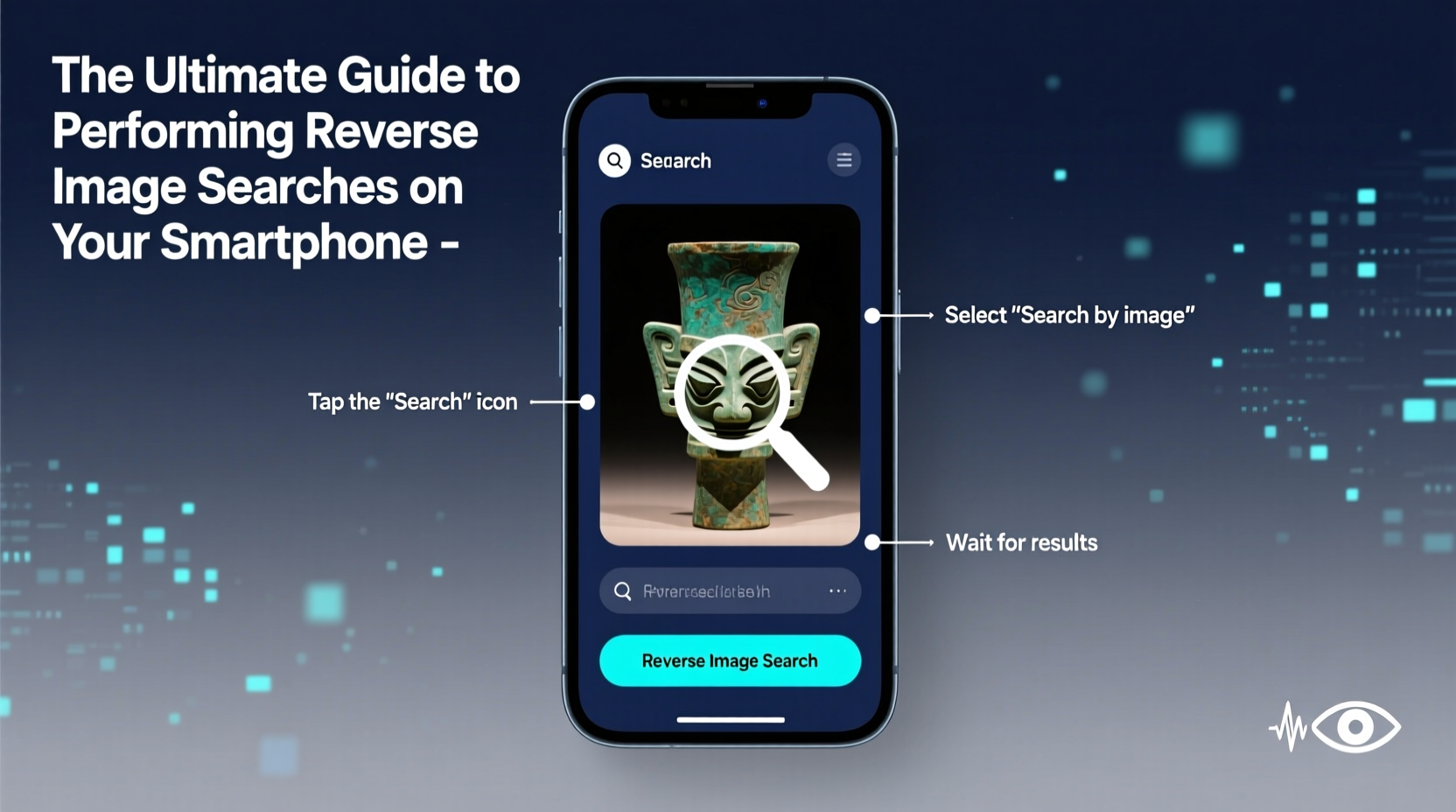
At its core, reverse image search analyzes the visual data of an image—such as color patterns, shapes, textures, and composition—to find visually similar or identical matches across the web. Search engines like Google, Bing, and Yandex maintain vast databases of indexed images. When you upload or select a photo, the algorithm compares its digital fingerprint against these databases to return relevant results.
On smartphones, the process typically involves either uploading a saved image or using your camera to capture a new one. The search engine then generates a list of web pages where the image appears, related products, or visually similar content. This can help uncover original sources, detect manipulated media, or even identify unknown plants, animals, or landmarks.
“Reverse image search has become essential for digital literacy. It empowers users to verify information and protect themselves from misinformation.” — Dr. Lena Patel, Digital Forensics Researcher at MIT Media Lab
Step-by-Step Guide: Performing a Reverse Image Search on Android and iOS
Both major mobile operating systems support reverse image search through built-in features and third-party apps. Below is a detailed walkthrough for each platform.
Using Google Lens (Android & iOS)
- Open the Google app or Google Photos.
- Navigate to the image you want to search—either in your gallery or by taking a new photo.
- Tap the Google Lens icon (shaped like a square with a dot in the center).
- The app will analyze the image and display relevant results: product links, text recognition, location data, or similar images.
- To refine results, tap specific areas of the image or use suggested search terms.
Using Safari and Google (iOS)
- In the Safari browser, go to images.google.com.
- Tap the AA icon in the address bar, then select “Request Desktop Website.”
- Tap the camera icon in the search bar.
- Choose “Upload an image” and select a photo from your library.
- Review the search results, including exact matches and related content.
Using Chrome (Android & iOS)
- Open the Chrome browser and navigate to Google Images.
- Tap the three-dot menu and select “Desktop site.”
- Click the camera icon in the search box.
- Upload an image from your phone or paste an image URL.
- Analyze the returned results for context, origin, and usage.
Top Use Cases and Real-World Applications
Reverse image search isn't just for curiosity—it has practical value across everyday scenarios.
Finding Product Sources and Prices
If you see someone wearing a unique jacket or spot a piece of furniture in a friend’s home, take a photo and run a reverse search. You’ll often find e-commerce listings, customer reviews, and price comparisons within seconds.
Verifying Social Media Content
Misinformation spreads quickly online. A viral post claiming to show a natural disaster might actually use an old photo from years ago. By reverse searching the image, you can trace its first appearance and assess credibility.
Identifying Unknown Objects
Captured a strange insect in your backyard? Found an unusual plant on a hike? Snap a clear photo and use Google Lens. Many species are instantly recognized, with links to scientific databases and care guides.
Protecting Your Own Content
Photographers, artists, and bloggers can use reverse search to monitor unauthorized use of their work. Regularly checking key images helps detect plagiarism or uncredited sharing.
“I once discovered my travel photo was being used on a tourism website without permission. A quick reverse search gave me the evidence I needed to request removal.” — Jordan Lee, Freelance Photographer
Do’s and Don’ts of Mobile Reverse Image Search
| Do’s | Don’ts |
|---|---|
| Use high-resolution, well-lit images for better accuracy | Don’t expect perfect results with blurry or cropped photos |
| Enable location services when identifying flora/fauna | Don’t rely solely on reverse search for legal or medical advice |
| Clear your cache periodically to improve app performance | Don’t upload sensitive personal images (e.g., IDs, private moments) |
| Compare results across multiple platforms (Google, Bing, Yandex) | Don’t assume the top result is always the original source |
Enhancing Accuracy: Tips for Better Results
Not all reverse image searches yield useful outcomes. Follow these best practices to maximize success.
- Crop strategically: Focus on the main subject. Removing background clutter improves match precision.
- Avoid screenshots: They often reduce quality and add UI elements that confuse algorithms.
- Use original files: Compressed or heavily edited images may not return accurate matches.
- Try multiple engines: Google excels with commercial content; Yandex is stronger with faces and artistic works.
- Check timestamps: Look at when pages containing the image were published to determine chronology.
Privacy and Ethical Considerations
While reverse image search is a powerful tool, it raises important ethical questions. Uploading photos of strangers without consent—especially from social media—can lead to doxxing or harassment. Always consider intent: Are you seeking knowledge, or invading someone’s privacy?
Similarly, avoid using the tool to bypass paywalls, steal designs, or impersonate others. Responsible use means respecting copyright, personal boundaries, and digital ethics.
FAQ
Can I reverse search a screenshot?
Yes, but results may be less accurate due to lower resolution or added interface elements like status bars. For best results, extract the target image from the screenshot or use the original file if available.
Is reverse image search free?
Yes, all major platforms—including Google, Bing, and Yandex—offer free reverse image search on mobile devices. No subscriptions or payments are required.
Why does my search return no results?
This usually happens if the image is too obscure, highly edited, or not indexed by the search engine. Try improving image quality, cropping to the subject, or testing with a different service like TinEye or Yandex.Images.
Conclusion
Reverse image search transforms your smartphone into a visual detective. With the right techniques, you can uncover truths, make informed purchases, protect your creative work, and satisfy curiosity—all with a single tap. As image-based content continues to dominate online spaces, mastering this skill becomes not just useful, but necessary.
The tools are already in your pocket. Now that you know how to use them effectively and responsibly, there's no limit to what you can discover. Start experimenting today—your next breakthrough might be just one photo away.
💬 Have a success story with reverse image search? Share your experience in the comments and inspire others to explore this powerful digital tool!