
If your Roku TV suddenly stops connecting to your cable box or service, it can be frustrating—especially when you're ready to watch your favorite show. Unlike streaming apps that rely solely on Wi-Fi, cable integration requires both physical connections and proper device communication. The good news is that most connection problems have simple fixes. Whether the issue lies in cabling, settings, or signal detection, this guide walks you through systematic steps to diagnose and resolve why your Roku TV won’t connect to cable.
Understanding How Roku TV Connects to Cable
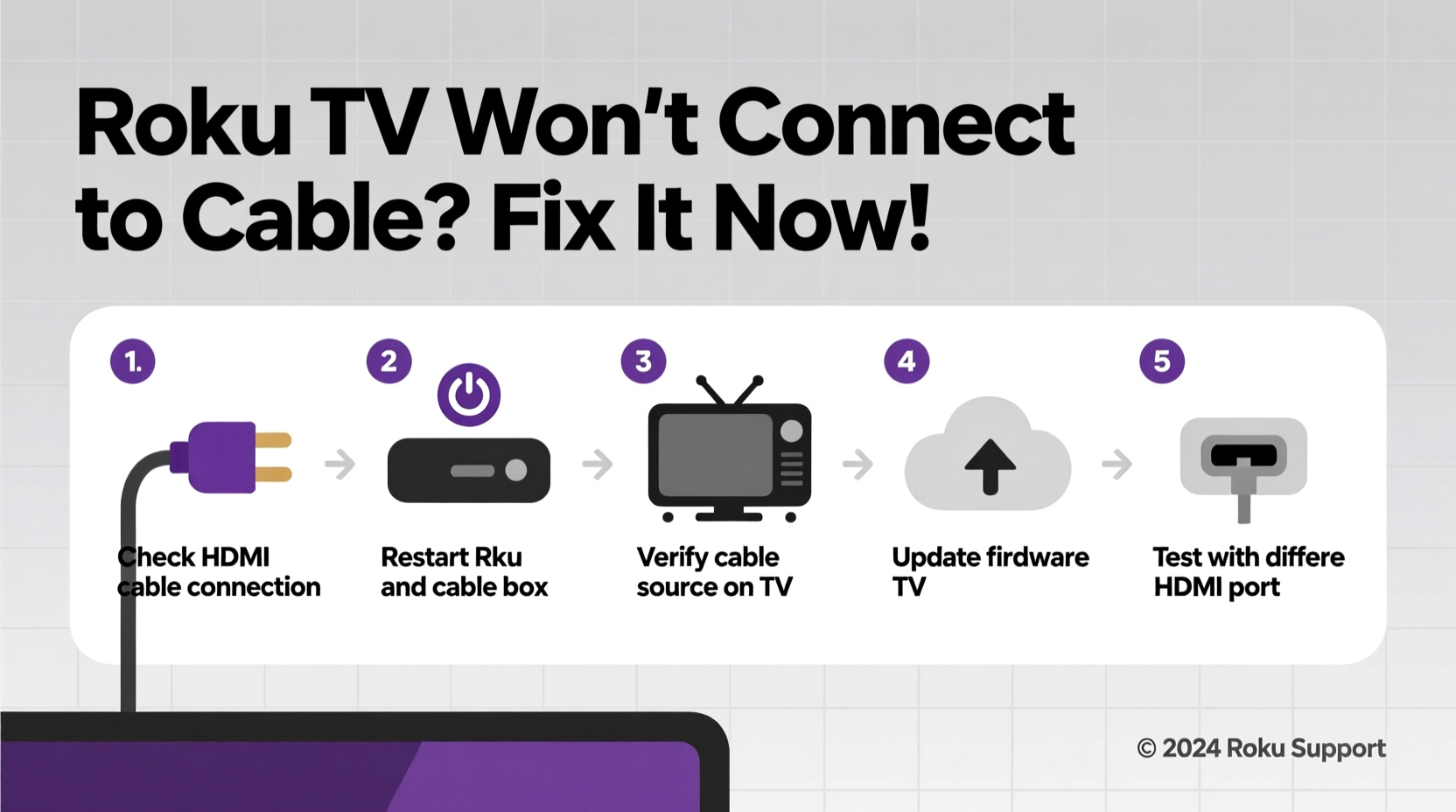
Roku TVs do not natively stream traditional cable channels like a Comcast or Spectrum set-top box does. Instead, they act as displays for external devices. To watch live cable TV, you must connect your cable box (or satellite receiver) to the Roku TV using an HDMI or AV cable. The Roku TV then uses its input switching feature to display the signal from the connected box.
This means that if your cable isn’t appearing on screen, the problem could stem from:
- A loose or faulty HDMI/AV cable
- Incorrect input selection on the Roku TV
- Power or signal issues with the cable box
- HDMI port failure on either device
- Outdated firmware affecting compatibility
Before assuming hardware failure, start with basic diagnostics.
Tip: Always power cycle both your Roku TV and cable box after making connection changes—it often resolves handshake issues between devices.Step-by-Step Troubleshooting Guide
Follow this logical sequence to identify and fix the root cause of your connection issue.
- Verify Physical Connections
Check that the HDMI or composite (red-yellow-white) cables are securely plugged into both the cable box and the correct input port on the Roku TV. If using HDMI, ensure it’s inserted fully—partial insertion causes intermittent signals. - Test the HDMI Cable and Port
Swap the HDMI cable with one known to work. Also, try plugging the cable into a different HDMI port on the TV. Then go to Input settings on your Roku remote and switch to the new port. - Restart Both Devices
Turn off the Roku TV and unplug the cable box from power. Wait 60 seconds, plug the cable box back in, let it fully boot (wait 2–3 minutes), then turn on the TV and select the correct input. - Select the Correct Input Source
Press the “Input” button on your Roku remote and choose the HDMI port where the cable box is connected. Label it “Cable Box” for easier access later. - Check Cable Box Signal Output
Use the cable box’s original remote to navigate its menu. If no image appears even on its native output, the issue may be with the box itself or your service provider’s signal. - Update Firmware
Outdated software on either device can cause compatibility hiccups. On your Roku TV, go to Settings > System > System Update and check for updates. For the cable box, consult your provider’s support site or call customer service. - Factory Reset (Last Resort)
If all else fails, reset the Roku TV via Settings > System > Advanced System Settings > Factory Reset. Note: This erases all login data and preferences.
Common Mistakes That Prevent Connection
Many users unknowingly make errors that interrupt the signal flow between cable box and TV. Avoid these pitfalls:
| Mistake | Why It Causes Issues | Solution |
|---|---|---|
| Using a damaged or low-quality HDMI cable | Poor conductivity leads to no signal or flickering picture | Replace with a certified high-speed HDMI cable |
| Leaving the cable box in standby mode | No active signal is sent to the TV | Ensure the box is fully powered on (front LED lit) |
| Forgetting to reselect input after reboot | TV defaults to last-used app instead of HDMI | Manually switch to correct HDMI input each time |
| Using outdated composite cables with modern boxes | Older analog cables don’t support HD or 4K resolution | Upgrade to HDMI for better quality and reliability |
Real Example: When a Simple Cable Swap Fixed Everything
Jamal in Austin had been frustrated for days—his Roku TV wouldn’t display anything from his Spectrum cable box. He tried restarting both devices, checking inputs, and even called customer support, who confirmed his account was active. One evening, while rearranging components behind the entertainment center, he noticed the HDMI cable was bent sharply behind the cabinet.
He replaced it with a spare flat HDMI cable, plugged it in carefully, restarted both devices, and immediately saw the cable menu appear. The old cable, though intact externally, had internal wire damage due to constant bending. A $10 cable solved what felt like a major technical failure.
“Most HDMI-related failures aren’t about the TV or source device—they’re about the integrity of the cable itself.” — Luis Mendez, Consumer Electronics Technician with 12 years of field experience
Do’s and Don’ts of Connecting Cable to Roku TV
Tip: Label your HDMI ports (e.g., “HDMI 1 – Cable Box”) in the Roku settings to avoid confusion during input switching.| Do’s | Don’ts |
|---|---|
| Use high-speed HDMI cables with Ethernet support | Don’t force a cable into a port at an angle |
| Keep devices ventilated to prevent overheating | Don’t daisy-chain multiple adapters or extenders |
| Regularly update both Roku TV and cable box firmware | Don’t assume the TV is broken without testing other inputs |
| Test with another device (like a game console) to isolate faults | Don’t ignore blinking lights on the cable box—they indicate status or error codes |
When to Contact Your Service Provider
If you’ve verified all connections, tested cables and ports, and still see no signal, the fault may lie with your cable provider. Common signs include:
- The cable box doesn’t power on or shows no lights
- Error messages like “No Signal,” “Searching,” or “Unauthorized”
- Other TVs in the house also fail to receive cable
In such cases, contact your provider. They can remotely refresh your box’s authorization, send a technician, or replace faulty equipment. Some providers offer self-service tools online to reboot your box remotely or check service outages in your area.
Frequently Asked Questions
Can I watch cable channels directly through the Roku interface?
No. Roku TVs cannot tune into traditional cable broadcasts without an external cable box. However, you can subscribe to live TV streaming services (like Hulu + Live TV or YouTube TV) through the Roku platform, which deliver cable-like channels over the internet.
Why does my HDMI input say 'No Signal' even with everything plugged in?
This usually indicates a break in the signal path. First, confirm the cable box is powered on. Then test the HDMI cable with another device. Also, try a different HDMI port on the TV and ensure you've selected that input using the Roku remote.
Is there a way to automate switching to cable when I press the TV button?
Yes. Some Roku models support Input Shortcut buttons. You can program a single button press on your remote to jump directly to your cable input. Go to Settings > Remotes & Devices > Remote > Shortcuts and assign HDMI 1 (or your cable port) to a button.
Final Steps Checklist
- ✅ Confirm cable box is powered on and functioning
- ✅ Inspect HDMI/AV cables for damage
- ✅ Try a different HDMI cable or port
- ✅ Restart both cable box and Roku TV
- ✅ Select correct input source on Roku TV
- ✅ Check for system updates
- ✅ Test with another device to rule out TV port failure
- ✅ Contact provider if no signal persists
Conclusion
A Roku TV that won’t connect to cable is rarely a lost cause. In most cases, the solution lies in a loose cable, incorrect input selection, or a quick restart. By methodically testing each component—from the HDMI cord to the cable box’s power supply—you can pinpoint and resolve the issue efficiently. Don’t rush to replace hardware; start with the basics and work your way up. With patience and the right approach, you’ll have your live TV back in minutes.
💬 Found this guide helpful? Share your own fix or leave a comment to help others troubleshoot their Roku TV cable connection issues!