A smartphone that won’t charge is more than an inconvenience—it can disrupt your work, communication, and access to essential apps. Whether the screen stays dark or shows a flickering battery icon, the problem often has a simple fix. Understanding the most frequent causes and knowing how to systematically troubleshoot them can save time, money, and frustration. This guide walks through the root causes, step-by-step diagnostics, and expert-backed solutions to get your phone powering up again.
Common Reasons Why Your Phone Won’t Charge
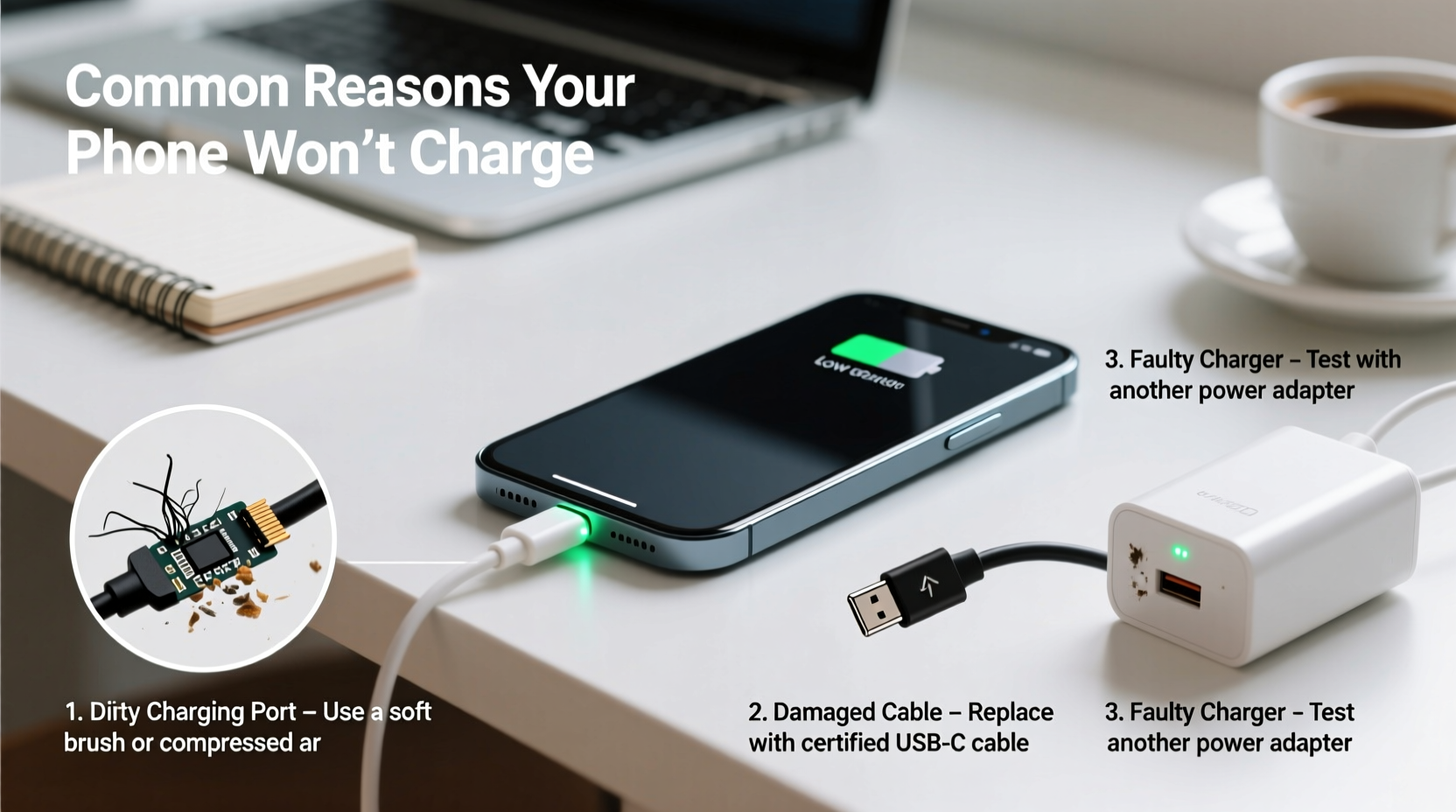
Charging problems rarely stem from a single cause. They can originate in hardware, software, or environmental factors. Identifying the category helps narrow down the solution.
- Damaged charging cable or adapter: Frayed wires or bent connectors prevent consistent power delivery.
- Dirty or obstructed charging port: Lint, dust, or debris block proper contact between the cable and port.
- Software glitches: Background processes or OS bugs may interfere with charging detection.
- Faulty battery: Over time, lithium-ion batteries degrade and lose the ability to hold a charge.
- Defective charging port: Physical damage from drops or repeated use can loosen internal connections.
- Incompatible or low-quality accessories: Third-party chargers may not meet voltage requirements.
- Overheating protection: Phones stop charging when internal temperatures rise too high.
Step-by-Step Troubleshooting Guide
Follow this logical sequence to isolate and resolve the issue efficiently. Start with the simplest fixes and progress to more involved diagnostics.
- Check the power source. Plug the charger into a different outlet or test it with another device. Wall outlets can fail, and USB ports on computers may not supply enough power.
- Inspect the charging cable and adapter. Look for visible damage—kinks, exposed wires, or bent prongs. Try a known-working set if available.
- Clean the charging port. Use a dry toothbrush or plastic pick to gently remove lint and debris. Avoid metal tools that could short-circuit components.
- Restart your phone. A soft reboot clears temporary software conflicts that may be blocking the charging function.
- Try wireless charging (if supported). If your phone charges wirelessly but not via cable, the issue is likely the port or cable.
- Boot into safe mode (Android). This disables third-party apps that might interfere with system functions, including charging.
- Check for physical damage. Inspect the port for bent pins or signs of liquid exposure (e.g., red corrosion indicators).
- Update your operating system. Manufacturers often release patches that fix power management bugs.
Do’s and Don’ts When Dealing With Charging Issues
| Do’s | Don’ts |
|---|---|
| Use manufacturer-approved chargers and cables | Force a bent connector into the port |
| Clean the port regularly with gentle tools | Use compressed air excessively (can push debris deeper) |
| Keep your phone cool during charging | Charge under pillows or blankets |
| Monitor battery health over time | Ignore persistent overheating warnings |
| Test multiple power sources | Assume the worst without testing alternatives |
Real-World Example: Recovering a Seemingly Dead Phone
Sarah noticed her Android phone wouldn’t charge after she dropped it in her couch cushions. The screen stayed black even when plugged in. She first tried a different cable—no change. Then she inspected the port and found a dense clump of lint blocking the pins. Using a plastic toothpick, she carefully removed the debris. After plugging in the original cable, the charging indicator appeared within seconds. The phone booted normally after 10 minutes of charging. What seemed like a critical failure turned out to be a minor obstruction.
“Over 60% of ‘dead’ phones brought into our repair shop actually just have dirty ports or failed cables. Simple cleaning resolves the issue in minutes.” — Marcus Lin, Mobile Repair Technician with 12 years of experience
When Hardware Might Be the Culprit
If basic troubleshooting fails, internal components may be at fault. These issues typically require professional attention.
- Worn-out battery: Swelling, rapid drain, or refusal to charge past a certain percentage suggest battery degradation.
- Loose or damaged charging port: If the phone only charges when the cable is held at a specific angle, the port may need replacement.
- Water damage: Even phones with IP ratings can suffer corrosion over time, especially if exposed to saltwater or moisture repeatedly.
- Logic board issues: Rare but serious, these involve failed power management chips or circuitry.
For iPhones, check the Battery Health section in Settings > Battery. If maximum capacity is below 80%, replacement is advisable. On Android devices, dial *#*#4636#*#* to access testing menus (availability varies by model) or use built-in battery diagnostics.
Preventive Checklist to Avoid Future Charging Problems
Proactive care reduces the likelihood of charging failures. Incorporate these habits into your routine:
- ✅ Clean the charging port every 4–6 weeks
- ✅ Replace frayed or stiff cables immediately
- ✅ Store your phone away from extreme temperatures
- ✅ Use surge protectors to shield against power spikes
- ✅ Avoid charging overnight regularly to reduce battery stress
- ✅ Keep software updated for optimal power management
Frequently Asked Questions
Why does my phone show it's charging but the battery percentage doesn’t increase?
This often happens when the phone consumes power faster than it receives it—common when using GPS, video streaming, or gaming while charging. It can also indicate a failing battery or inefficient charger. Try turning the phone off while charging to see if the level rises.
Can a software update really fix charging issues?
Yes. Updates frequently include fixes for bugs affecting battery calibration, charging logic, and thermal management. For example, iOS 15.2 included a patch for iPhones that stopped charging at 80%. Always check for updates before seeking hardware repairs.
Is it safe to use third-party chargers?
Only if they are certified (look for MFi for Apple, or USB-IF certification). Cheap, uncertified chargers can deliver unstable voltage, damaging your battery or posing fire risks. Stick to reputable brands and avoid unknown online sellers.
Conclusion: Take Action Before Replacing Your Phone
A phone that won’t charge isn’t necessarily broken beyond repair. Most issues stem from easily fixable causes like dirty ports, faulty cables, or minor software hiccups. By methodically testing each component and following best practices, you can often restore full functionality without spending a dime. Don’t rush to buy a new device—troubleshoot first. Implement preventive habits to extend your phone’s lifespan and maintain reliable charging performance.
💬 Have a charging fix that worked for you? Share your experience in the comments and help others solve their phone charging dilemmas.