
In today’s work-from-home era, your desk setup isn’t just about aesthetics—it directly affects your posture, productivity, and long-term health. One of the most debated choices in modern home office design is whether to use a traditional monitor stand or upgrade to a monitor arm. While both get the job done, proponents of monitor arms claim superior ergonomics, flexibility, and workspace efficiency. But is the difference truly meaningful, or is it just tech hype?
The answer lies in understanding how each option influences your physical comfort, screen positioning, and overall workflow. For remote workers spending eight or more hours a day in front of a screen, even minor adjustments can have cumulative effects on neck strain, eye fatigue, and spinal alignment. This article examines the real ergonomic differences between monitor arms and standard stands, backed by practical insights, expert recommendations, and real-world user experiences.
Ergonomic Fundamentals: Why Monitor Position Matters
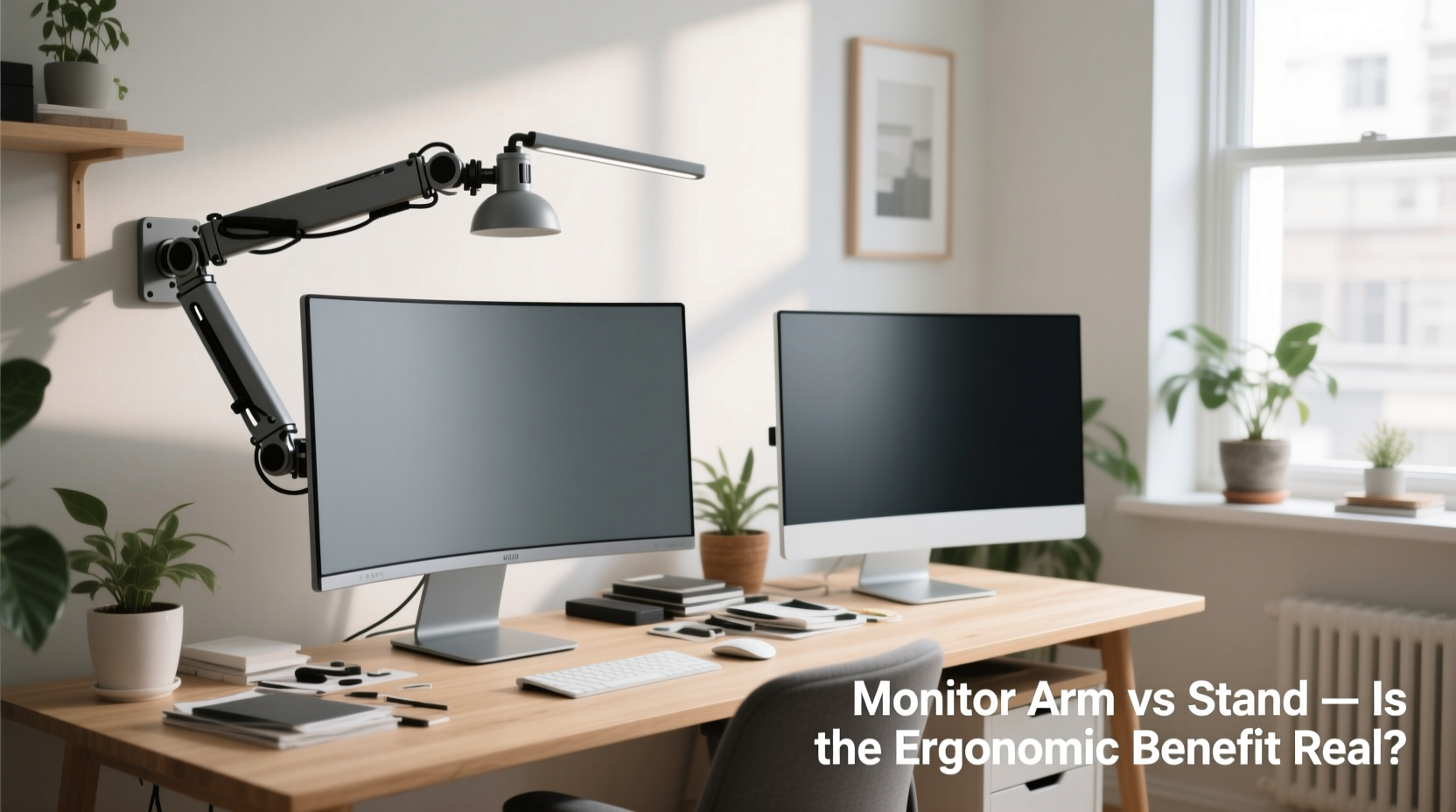
Ergonomics isn't just a buzzword—it's a science focused on designing environments that fit human needs. When applied to computer workstations, proper ergonomics reduces musculoskeletal strain and enhances concentration. The position of your monitor plays a pivotal role in this equation.
According to the Occupational Safety and Health Administration (OSHA), your monitor should be positioned so that the top of the screen is at or slightly below eye level. This prevents excessive upward or downward gaze, which over time can lead to neck pain and upper back tension. Additionally, the screen should be about an arm’s length away from your eyes—roughly 20 to 30 inches—to reduce eye strain and encourage good posture.
A poorly placed monitor forces your body to adapt unnaturally. Leaning forward, craning your neck, or twisting to view the screen introduces micro-stresses that accumulate into chronic discomfort. This is where the choice between a monitor arm and a fixed stand becomes critical.
“Even a few degrees of improper screen angle can increase cervical spine load by up to 40%. Small adjustments matter.” — Dr. Lena Patel, Ergonomic Consultant at PostureWorks Lab
Monitor Arms: Flexibility, Precision, and Space Efficiency
Monitor arms are mechanical mounts that attach to your desk and suspend your display using adjustable joints. Most models support height, tilt, swivel, and rotation adjustments—some even allow portrait mode switching with a simple pivot.
The primary advantage of a monitor arm is its range of motion. Unlike fixed stands, arms let you fine-tune your screen position with millimeter-level accuracy. Whether you’re seated, standing at a convertible desk, or collaborating with someone across the room, you can reposition the monitor instantly.
Another major benefit is space conservation. By lifting the monitor off the desk surface, arms free up valuable real estate for keyboards, notebooks, or secondary devices. This contributes to a cleaner, less cluttered workspace, which indirectly supports mental focus and organization.
Tip: Use dual monitor arms if you work with multiple screens—they keep alignment consistent and reduce head-turning strain.Types of Monitor Arms and Their Use Cases
| Type | Movement Range | Best For | Limits |
|---|---|---|---|
| Single-Tier Arm | Height, tilt, swivel | Basic setups, single monitors | Limited extension; may not suit ultra-wide displays |
| Dual-Monitor Arm | Full articulation for two screens | Developers, designers, multitaskers | Bulkier; requires sturdier clamp or grommet mount |
| Gas-Spring Arm | Smooth, counterbalanced adjustment | Precision positioning, frequent reconfiguration | Higher cost; needs calibration |
| Ceiling/Wall Mount | Fixed but space-saving | Small rooms, minimalist offices | Installation complexity; permanent modification |
Standard Monitor Stands: Simplicity vs. Limitations
Most monitors come with a built-in stand—a plastic or metal base that props the screen upright. These stands typically offer limited adjustability: basic tilt (forward/backward) and sometimes height or pivot options. High-end models from brands like Dell, LG, or Apple may include advanced stands with full articulation, but they're the exception rather than the rule.
For casual users or those with infrequent screen interaction, a standard stand may suffice. It’s plug-and-play, requires no installation, and maintains manufacturer warranty compliance. However, for anyone working extended hours, these stands often fall short.
Common complaints include:
- Inability to raise the screen high enough without removing the entire stand.
- No lateral movement, forcing awkward head turns during multi-tasking.
- Taking up large portions of desk space, especially with bulky bases.
- Fixed depth, making it hard to optimize viewing distance.
Moreover, many stock stands don’t align with ergonomic best practices. A 2021 study published in *Applied Ergonomics* found that 68% of participants using factory-provided monitor stands adopted compromised postures within two weeks of remote work setup.
Real-World Impact: A Mini Case Study
Consider Sarah, a freelance graphic designer who transitioned to full-time remote work in 2022. She used her laptop on a dining table with an external monitor resting on its original stand. Within six months, she developed persistent neck stiffness and frequent headaches.
After consulting a physiotherapist, she learned her monitor was positioned too low and too far to the right, forcing her to twist and look down constantly. She replaced the stand with a gas-spring dual-arm mount, adjusted her chair height, and aligned both screens symmetrically.
Within three weeks, her symptoms decreased significantly. “I didn’t realize how much my body was compensating,” she said. “Now I can work longer without discomfort, and my desk feels more organized.”
Sarah’s experience reflects a broader trend: small ergonomic improvements yield measurable health and performance outcomes.
Cost-Benefit Analysis: Are Monitor Arms Worth It?
Monitor arms typically range from $50 for basic models to $200+ for premium, fully articulating versions. In contrast, monitor stands come included with the display—at no extra cost. So, is the investment justified?
From an ergonomic standpoint, yes—especially if you spend four or more hours daily at your desk. The ability to precisely position your screen reduces physical strain and helps maintain neutral posture. Over months and years, this can prevent repetitive strain injuries (RSIs), lower healthcare costs, and improve work satisfaction.
Additionally, monitor arms often enhance cable management. Many include internal channels to route power and data cables neatly, reducing visual clutter and tripping hazards. Some even integrate USB hubs or wireless charging pads.
On the downside, cheaper arms may wobble, lack durability, or fail to support heavier monitors. Always check weight compatibility and mounting requirements before purchasing.
Checklist: Choosing Between a Monitor Arm and Stand
- Assess your daily screen time: If you work more than 3–4 hours a day, prioritize adjustability.
- Measure your desk space: Small desks benefit from arms that free up surface area.
- Check monitor VESA compatibility: Not all monitors support third-party arms (older or ultra-thin models).
- Evaluate adjustability needs: Do you switch between sitting and standing? Need portrait mode?
- Compare build quality: Look for steel construction, smooth gas springs, and secure clamps.
- Review warranty and return policy: Reputable brands offer 3–5 year warranties.
Step-by-Step Guide to Optimizing Your Monitor Setup
Whether you choose a stand or an arm, follow this sequence to maximize ergonomic benefit:
- Adjust your chair first: Set seat height so feet are flat on the floor and knees at 90°.
- Position the monitor: Center the screen directly in front of you, avoiding extreme left/right angles.
- Set the height: Top of the screen should be at or slightly below eye level when seated.
- Set the distance: About 20–30 inches from your eyes—roughly an arm’s length.
- Angle the screen: Tilt slightly backward (10°–20°) to minimize glare and reflection.
- Test and refine: Sit back, relax your shoulders, and ensure no neck twisting or squinting is needed.
If using a monitor arm, repeat steps 3–6 each time you reconfigure your desk. With practice, finding the ideal position becomes second nature.
Frequently Asked Questions
Can a monitor arm reduce eye strain?
Yes. Proper screen height and distance help maintain a natural line of sight, reducing the need to squint or refocus frequently. Additionally, arms allow you to position the monitor away from overhead lighting glare, further decreasing visual fatigue.
Do all monitors work with monitor arms?
No. Most modern monitors support VESA mounting standards (typically 75x75mm or 100x100mm), but some ultra-slim or curved models do not. Always verify VESA compatibility before purchase. Adapters are available for select non-VESA monitors.
Are monitor arms stable enough for large screens?
High-quality arms designed for 27-inch or larger monitors provide excellent stability when properly installed. Look for models rated for your monitor’s weight (usually listed in pounds or kilograms). Avoid overloading; exceeding the limit causes drooping or imbalance.
Conclusion: Making the Right Choice for Long-Term Comfort
The debate between monitor arms and stands isn’t just about convenience—it’s about long-term well-being. While standard stands serve a purpose, they often lock users into suboptimal positions. Monitor arms, on the other hand, empower you to tailor your workspace to your body’s needs, not the other way around.
The ergonomic benefits are real: improved posture, reduced strain, and greater adaptability. For home office professionals, freelancers, or anyone committed to sustainable work habits, investing in a quality monitor arm is one of the most effective upgrades you can make.
🚀 Ready to transform your workspace? Evaluate your current setup, measure your needs, and consider upgrading to a monitor arm. Your body—and productivity—will thank you.