
Choosing between a MacBook Air M3 and a Windows ultrabook under $800 isn't just about price—it's about long-term value, workflow compatibility, and real-world usability. Apple’s M3 chip brings desktop-class performance to an ultra-thin design, but at nearly $1,000 base, it sits well above most budget Windows alternatives. Meanwhile, the sub-$800 Windows ultrabook market has evolved dramatically, with devices now offering solid build quality, modern processors, and impressive battery life. So, which is the smarter investment?
The answer depends on how you use your laptop, what software you rely on, and how much future-proofing you need. This isn’t a one-size-fits-all decision. For some, macOS elegance and efficiency are worth the premium. For others, the flexibility and affordability of Windows make more sense—especially when budgets are tight.
Performance and Real-World Speed
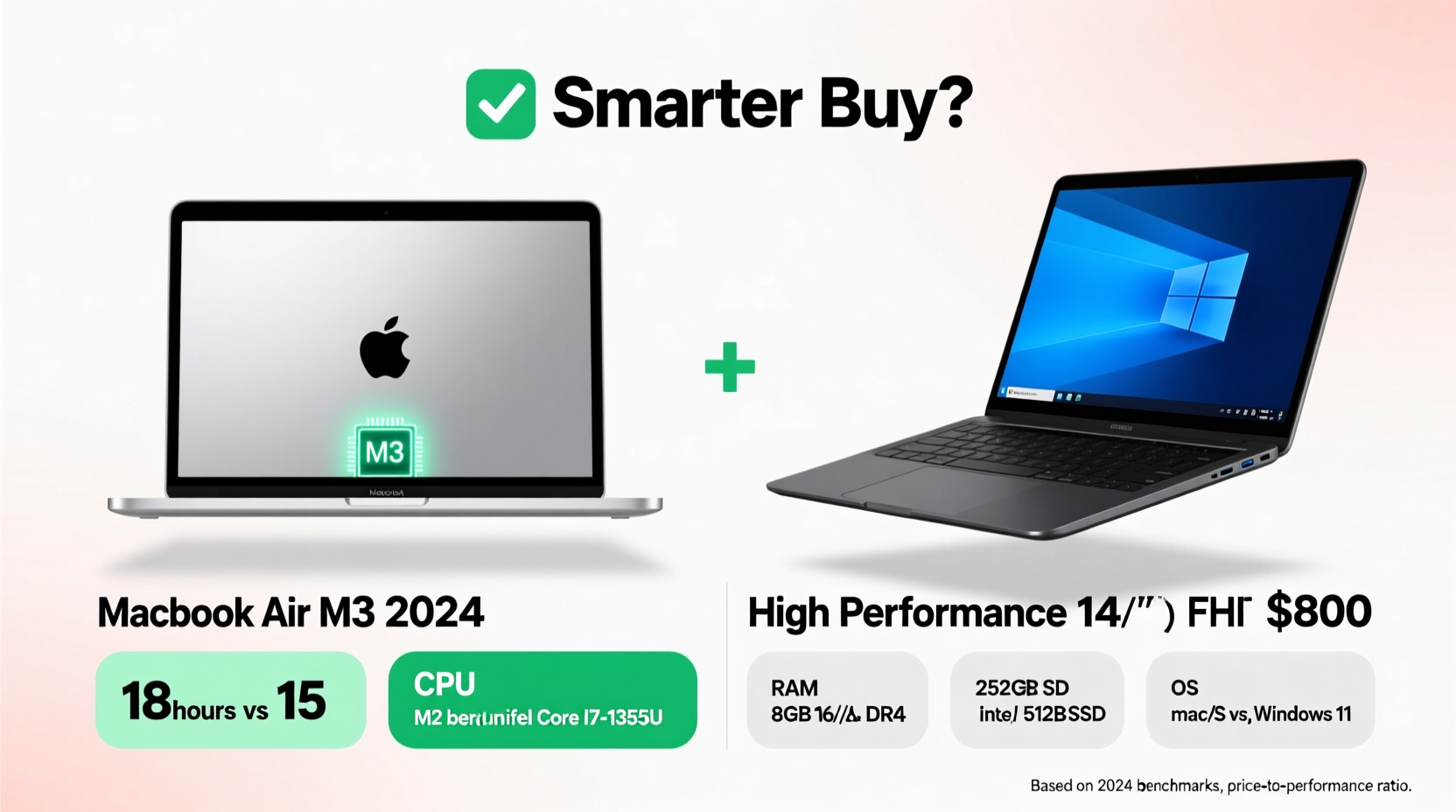
The MacBook Air M3 runs on Apple’s custom silicon, delivering exceptional performance per watt. With up to an 8-core CPU and 10-core GPU, it outperforms many high-end Intel and AMD laptops in single-threaded tasks, video encoding, and creative workflows like photo editing or light video rendering. Its unified memory architecture ensures smooth multitasking, even with dozens of browser tabs and multiple apps open.
In contrast, Windows ultrabooks under $800 typically feature Intel Core i5 or i7 (13th or 14th Gen) or AMD Ryzen 5/7 7000-series processors. While capable, these chips can’t match the M3’s efficiency or sustained performance in thermally constrained designs. Many budget models come with slower DDR4 RAM, older PCIe 3.0 SSDs, and limited cooling solutions that throttle under load.
However, raw benchmarks don’t tell the whole story. For everyday tasks—web browsing, email, streaming, document editing—both platforms feel snappy. The M3 pulls ahead in app launch speed, file compression, and export times, but for general productivity, a well-built Windows machine keeps pace.
Tip: If you're doing frequent photo/video editing or coding, the M3’s efficiency and thermal silence offer tangible daily benefits.Battery Life and Portability
Battery life is where the MacBook Air M3 truly shines. Apple claims up to 18 hours of web browsing, and real-world testing consistently shows 12–15 hours with mixed usage. That means a full workday, commute, and evening Netflix session on a single charge. The M3’s power efficiency eliminates fan noise entirely—even under moderate load.
Most Windows ultrabooks under $800 deliver 7–10 hours depending on screen brightness, background apps, and whether they have integrated or discrete graphics. High-resolution displays and powerful CPUs drain batteries faster, especially if you’re not plugged in often. Some exceptions exist—like the Lenovo Yoga Slim 7 or Acer Swift X—but they often sacrifice performance or portability to achieve longer runtimes.
Portability is another win for Apple. At just 2.7 pounds and 11.3 mm thick, the Air remains one of the most travel-friendly laptops available. Many Windows ultrabooks are similarly svelte, but few match its combination of thinness, weight, and structural rigidity. Aluminum unibody construction gives the Air durability without adding bulk.
“Battery life isn’t just convenience—it’s freedom from outlets, chargers, and anxiety about dying mid-task.” — David Ng, Mobile Productivity Analyst
Build Quality, Display, and User Experience
The MacBook Air features a Liquid Retina display with P3 wide color, 500 nits brightness, and excellent viewing angles. It supports HDR playback and delivers vibrant, accurate colors ideal for media consumption and creative work. The keyboard is quiet and responsive, the trackpad is the largest in its class, and the speakers support spatial audio—making it a top-tier experience for a thin-and-light device.
Windows ultrabooks vary widely in display quality. At this price point, most use 1080p IPS panels with 300–400 nits peak brightness. Some include touchscreens, which can be useful but reduce battery life. Build materials range from aluminum (e.g., ASUS ZenBook 14) to plastic (e.g., HP Pavilion Aero), affecting both feel and longevity.
One area where Windows wins is versatility. Many models offer 2-in-1 designs, stylus support, HDMI ports, SD card readers, and upgradeable components. The MacBook Air sacrifices all expandability for sleekness—no USB-A, no HDMI, no microSD—and relies entirely on two USB-C ports.
| Feature | MacBook Air M3 | Windows Ultrabook (<$800) |
|---|---|---|
| Starting Price | $999 | $500–$799 |
| CPU | Apple M3 (8-core) | Intel Core i5/i7 or AMD Ryzen 5/7 |
| Ram | 8GB (non-upgradeable) | 8–16GB (often upgradeable) |
| Storage | 256GB SSD (non-expandable) | 256GB–1TB NVMe (some expandable) |
| Battery Life | 12–18 hours | 7–10 hours |
| Display | 13.6\" Liquid Retina, 500 nits | 13–14\" FHD IPS, 300–400 nits |
| Ports | 2x USB-C, MagSafe | USB-C, USB-A, HDMI (varies) |
| OS Flexibility | macOS only | Can dual-boot, install Linux, etc. |
Software Ecosystem and Longevity
Apple’s ecosystem integration is a major selling point. If you own an iPhone, iPad, or Apple Watch, the continuity features—Handoff, Universal Clipboard, AirDrop, Sidecar—are seamless and productive. iCloud syncs notes, passwords, and files effortlessly. The M3 Macs are also guaranteed to receive macOS updates for at least five years, possibly more, ensuring long-term security and compatibility.
Windows ultrabooks depend heavily on manufacturer support. Brands like Dell, Lenovo, and ASUS typically provide 3–5 years of driver and BIOS updates, but lower-cost OEMs may stop sooner. However, Windows offers far greater software flexibility. You can run legacy applications, development tools, gaming engines, and virtual machines that macOS either restricts or doesn’t support.
For students, developers, or business users who rely on specific Windows-only software—like AutoCAD, SAP, or certain financial modeling tools—a MacBook may not be viable regardless of hardware superiority. Conversely, creatives using Final Cut Pro, Logic Pro, or Adobe Creative Cloud often find macOS more optimized and stable.
Tip: Check software compatibility first. No amount of power helps if your essential apps won’t run.Real-World Decision: Who Should Buy What?
Consider Sarah, a college student majoring in communications. She needs a lightweight laptop for note-taking, research, and group video calls. She uses Google Workspace, Zoom, and occasionally edits short videos for class projects. Her budget is $750.
She considered the MacBook Air M3 but found it over her limit. Instead, she bought a Lenovo IdeaPad Slim 5 with an AMD Ryzen 7, 16GB RAM, and a 512GB SSD for $699. It handles her workload smoothly, has a great keyboard, and includes a fingerprint reader. While battery life is only 8 hours, she keeps a charger in her backpack. For her needs, the Windows ultrabook was the smarter buy—not because it’s better, but because it delivered 90% of the experience at 70% of the cost.
Compare that to James, a freelance photographer who travels frequently. He values silent operation, long battery life, and color-accurate displays for editing on the go. He upgraded his old Intel MacBook Air to the M3 model despite the cost. The jump in performance, screen quality, and battery endurance justified the investment. For him, the MacBook wasn’t a luxury—it was a tool that increased his productivity and reduced downtime.
Step-by-Step: How to Decide Between Them
- Assess your primary use case: Are you doing office work, coding, media creation, or casual browsing?
- List your essential software: Does it require Windows or macOS? Are there cross-platform alternatives?
- Check ecosystem ties: Do you use iPhone, Android, cloud services, or peripherals that favor one platform?
- Determine your budget ceiling: Can you stretch to $1,000, or must you stay under $800?
- Test real-world performance: Look for reviews focusing on sustained workloads, not just benchmarks.
- Consider longevity: Will you keep the device 4+ years? If so, prioritize build quality and update support.
- Make the trade-off: Accept fewer ports for macOS refinement, or accept shorter battery life for Windows flexibility.
FAQ
Can I run Windows software on a MacBook Air M3?
Yes, but with limitations. You can use virtualization tools like Parallels Desktop to run Windows ARM, but x86 applications may run slowly or not at all. Boot Camp is not supported on Apple Silicon, so dual-booting isn’t an option.
Is 8GB RAM enough on the MacBook Air M3?
For most users, yes—thanks to macOS optimization and unified memory. But if you regularly edit 4K video, run multiple VMs, or use memory-heavy development environments, consider upgrading to 16GB, ideally at purchase since it’s not user-upgradeable.
Are there any Windows ultrabooks that come close to the MacBook Air?
A few do. The Microsoft Surface Laptop 5 (if found on sale), Dell XPS 13 (older models), and LG Gram series offer premium builds and strong battery life. However, they often exceed $800 unless bought refurbished or during deep discounts.
Checklist: Before You Buy Either Option
- ✅ Confirm your must-have apps run on the target OS
- ✅ Test keyboard and trackpad feel (if possible)
- ✅ Verify included ports meet your needs
- ✅ Check warranty and support options
- ✅ Research resale value trends
- ✅ Consider future needs—will this last 4–5 years?
- ✅ Compare total cost including accessories (docks, adapters, cases)
Conclusion: Value vs. Investment
The MacBook Air M3 is not the cheapest option, but it’s an investment in long-term reliability, performance, and ecosystem synergy. It excels for users who value silence, battery life, and a seamless digital lifestyle. If you can afford it and work within Apple’s ecosystem, it’s hard to beat.
The Windows ultrabook under $800, however, represents incredible value. Modern models no longer feel like compromises. They offer solid performance, good screens, and practical features that suit students, remote workers, and budget-conscious professionals. When money matters, Windows delivers choice and adaptability.
Neither is universally “smarter.” The smarter buy is the one that aligns with your actual usage, workflow, and priorities. Don’t chase specs—chase utility.
🚀 Ready to make your move? Revisit your daily tasks, test drive both systems if possible, and choose the laptop that works for you—not just the one that looks best on paper.