
In today’s mobile-first world, laptops are essential tools for work, education, and entertainment. But as processing demands rise—especially with video editing, gaming, or multitasking—the internal components generate significant heat. Overheating can lead to throttling, reduced performance, and long-term hardware degradation. This has fueled the popularity of laptop cooling pads. Yet many users wonder: do they actually help, or are they just an accessory that adds clutter without real benefit?
The answer isn’t a simple yes or no. Whether a cooling pad makes a meaningful difference depends on your laptop model, usage patterns, ambient environment, and the quality of the pad itself. To understand the true impact, we need to look at how heat builds up in laptops, how cooling pads function, and what real-world results say about their effectiveness.
How Laptops Generate and Manage Heat
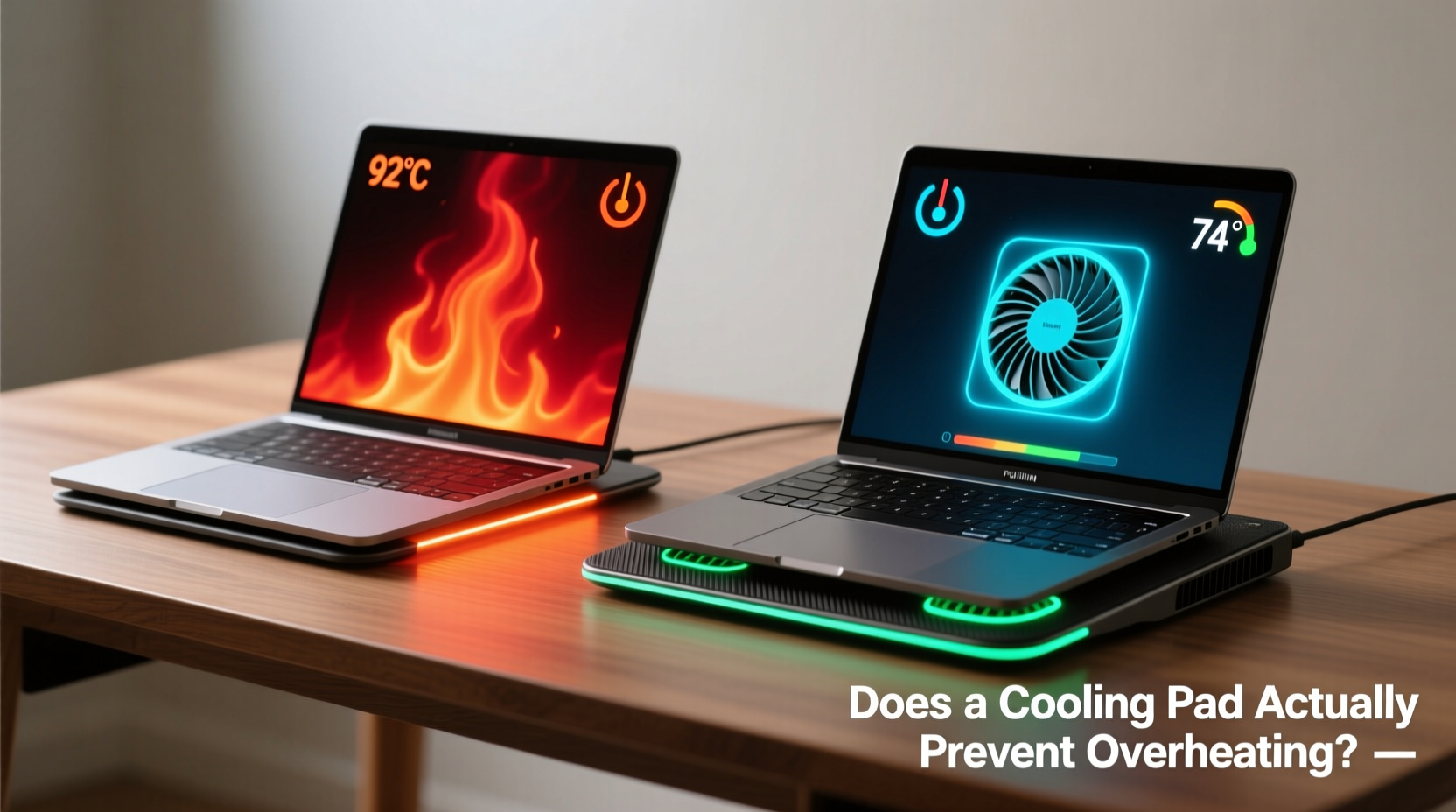
Laptops rely on compact internal cooling systems—typically a combination of heat pipes, small fans, and ventilation grills—to dissipate heat from the CPU and GPU. These systems are engineered to balance performance, noise, and battery life within tight physical constraints. However, limitations arise due to space, dust accumulation, aging thermal paste, and poor airflow caused by surface placement.
When a laptop runs intensive applications, its processors increase clock speeds and power draw, generating more heat. If this heat isn’t efficiently expelled, temperatures rise. Most modern laptops have built-in thermal protection that reduces performance (thermal throttling) to prevent damage. While this safeguards hardware, it degrades user experience—slower rendering, laggy gameplay, or unresponsive software.
Passive factors like room temperature, direct sunlight, and placing the laptop on soft surfaces (beds, couches) can worsen airflow restriction. The bottom chassis often blocks intake vents when placed flat on such surfaces, trapping hot air underneath and reducing cooling efficiency.
Tip: Always use your laptop on a hard, flat surface to ensure proper airflow through intake vents.How Cooling Pads Work: Design and Mechanism
Cooling pads are external platforms designed to elevate the laptop and improve airflow. They typically feature one or more built-in fans powered via USB, though some passive models rely solely on angled elevation. Active cooling pads use forced convection—fans blow air directly onto or under the laptop—to supplement the internal cooling system.
Most models include adjustable height settings and ergonomic tilt options, which can also enhance typing comfort. Fan sizes vary (commonly 90mm to 140mm), with larger fans generally moving more air at lower noise levels. Some high-end models offer variable speed controls, RGB lighting, or even additional USB hubs.
The theory behind cooling pads is straightforward: by lifting the laptop off obstructive surfaces and introducing additional airflow, they reduce the ambient temperature around the chassis and help internal fans operate more efficiently. However, the actual thermal improvement depends on several factors—including alignment with intake vents, fan strength, and the laptop’s original cooling design.
“While cooling pads can provide marginal temperature reductions, they won’t fix fundamental thermal bottlenecks in poorly ventilated ultrabooks.” — Dr. Lin Zhao, Thermal Systems Engineer at Advanced Computing Labs
Real-World Performance: Cooling Pad vs No Pad
To assess whether cooling pads deliver tangible benefits, multiple independent tests have been conducted using thermal monitoring software like HWMonitor, Core Temp, and AIDA64. Tests typically involve running stress benchmarks (e.g., Prime95, FurMark) while measuring CPU and GPU temperatures with and without a cooling pad.
Results show a consistent but modest reduction in surface and internal temperatures. In controlled environments (room temp ~22°C), most mid-range active cooling pads reduce average CPU temperatures by 5–10°C during sustained workloads. For example:
- A gaming laptop running at 85°C under load dropped to 77°C with a dual-fan cooling pad.
- An ultrabook used for video encoding saw a 6°C drop, going from 82°C to 76°C.
- On soft surfaces like beds, where baseline temps rose to 90°C, the same pad achieved a 12°C reduction.
However, the improvements are less pronounced in well-ventilated setups. When a laptop is already on a desk with open airflow, adding a cooling pad may only yield a 2–3°C difference—often within the margin of sensor error.
Moreover, not all cooling pads are created equal. Cheap models with weak fans or misaligned airflow can be ineffective or even create turbulence that disrupts natural convection. Conversely, high-quality pads with large, quiet fans and proper vent alignment offer better results.
Case Study: Remote Worker in a Hot Climate
Carlos, a freelance graphic designer based in Miami, uses a mid-2019 MacBook Pro for photo editing and After Effects projects. His apartment lacks central AC, and summer indoor temperatures often exceed 30°C. He noticed frequent fan noise and occasional app freezes during renders.
After researching thermal solutions, he purchased a three-fan cooling pad with adjustable height. Using iStat Menus, he monitored his CPU temps before and after:
- Without pad: Sustained load temps averaged 92–96°C, with throttling kicking in after 15 minutes.
- With pad: Average temps dropped to 84–87°C, and throttling was delayed by over 25 minutes.
While not eliminating heat issues entirely, the pad extended productive time and improved system stability. Carlos also began cleaning his laptop’s vents monthly and using a secondary desk fan to cool the workspace—complementary habits that amplified the pad’s effect.
When a Cooling Pad Helps (And When It Doesn’t)
The value of a cooling pad is highly situational. Below is a comparison table summarizing scenarios where cooling pads are beneficial versus situations where they offer little return.
| Situation | Benefit Level | Why It Helps (or Doesn’t) |
|---|---|---|
| Laptop used on bed, couch, or lap | High | Elevation prevents vent blockage; added airflow compensates for restricted intake. |
| Gaming or rendering on high-performance laptop | Moderate | Supplements internal cooling under heavy loads; extends time before throttling. |
| Ultrabook with limited thermal headroom | Low to Moderate | May reduce surface heat but can't overcome thin heat pipes and low fan capacity. |
| Laptop already on hard desk with good airflow | Low | Minimal gain; internal fans are already operating efficiently. |
| Hot ambient environment (above 28°C) | Moderate to High | External airflow helps offset higher baseline temperatures. |
| Older laptop with dust-clogged vents | Low (unless cleaned first) | Dust insulates heat; cleaning is more effective than adding a pad. |
Step-by-Step Guide to Maximizing Laptop Cooling
If you're serious about preventing overheating, relying solely on a cooling pad isn’t enough. Follow this step-by-step routine to maintain optimal thermal performance:
- Evaluate your usage patterns: Identify if you run CPU/GPU-intensive tasks regularly (gaming, coding, streaming).
- Assess your current setup: Are you using the laptop on a soft surface? Is the room well-ventilated?
- Inspect and clean your laptop: Use compressed air to blow out dust from vents. Do this every 3–6 months.
- Check internal temperatures: Use free tools like HWInfo or Core Temp to monitor idle and load temps.
- Determine if a cooling pad is needed: If temps exceed 85°C under load and you’re in a restrictive environment, consider purchasing one.
- Choose the right pad: Look for models with large fans (≥120mm), adjustable height, and USB pass-through if needed.
- Use in combination with other methods: Position near a room fan, avoid direct sunlight, and close unused background apps.
- Re-evaluate after 2 weeks: Monitor temperature logs to see if the investment paid off.
Frequently Asked Questions
Do cooling pads extend laptop lifespan?
Indirectly, yes. Consistently lower operating temperatures reduce thermal stress on components like the CPU, GPU, and battery. Over years, this can delay degradation and reduce the risk of sudden failures. However, the effect is gradual and works best alongside proper maintenance.
Can a cooling pad damage my laptop?
No, a properly designed cooling pad will not damage your laptop. It draws minimal power from USB and doesn’t interfere with internal electronics. However, very cheap models with unstable structures could pose a physical risk if they cause the laptop to wobble or overheat due to poor airflow design.
Are passive cooling stands as effective as active ones?
Passive stands (without fans) mainly improve ergonomics and slight airflow through elevation. They may reduce surface temperature by 2–4°C but don’t significantly impact internal component temps under load. For real thermal relief, active (fan-powered) pads are far more effective.
Final Verdict: Is a Cooling Pad Worth It?
The evidence suggests that laptop cooling pads do prevent overheating—but only to a degree, and only in specific conditions. They are most effective when used on soft surfaces, in warm environments, or with high-performance machines pushed to their limits. For casual users working in cool, well-ventilated spaces, the benefits are minimal.
Think of a cooling pad not as a cure-all solution, but as one tool in a broader thermal management strategy. Its real value emerges when combined with smart usage habits: keeping vents clean, avoiding direct heat sources, and ensuring adequate ambient airflow.
If your laptop frequently hits thermal throttling, produces loud fan noise, or feels uncomfortably hot to the touch, a quality cooling pad can make a noticeable difference. But don’t expect miracles. It won’t transform an overheating ultrabook into a desktop-level cooler. Instead, view it as a practical, low-cost upgrade that enhances comfort and slightly improves sustained performance.
🚀 Ready to keep your laptop cool and performing at its best? Start by checking your current setup, then decide if a cooling pad fits your needs. Share your experience or ask questions in the comments—your insights could help others make smarter choices!