In an age where music, podcasts, and live broadcasts are delivered almost exclusively through digital streams, the ability to capture and preserve audio content has become increasingly valuable. Whether you're a podcaster saving interviews, a researcher archiving radio segments, or a music enthusiast wanting offline access to rare tracks, copying streaming audio can serve practical, creative, and archival purposes. However, not all methods are equal—some are cumbersome, others violate terms of service, and many users simply don’t know where to start.
This guide breaks down the most accessible, reliable, and technically sound approaches to recording streaming audio. From built-in system tools to third-party software, we’ll explore options that balance ease of use with quality, legality, and functionality.
Understanding Streaming Audio: What You’re Capturing
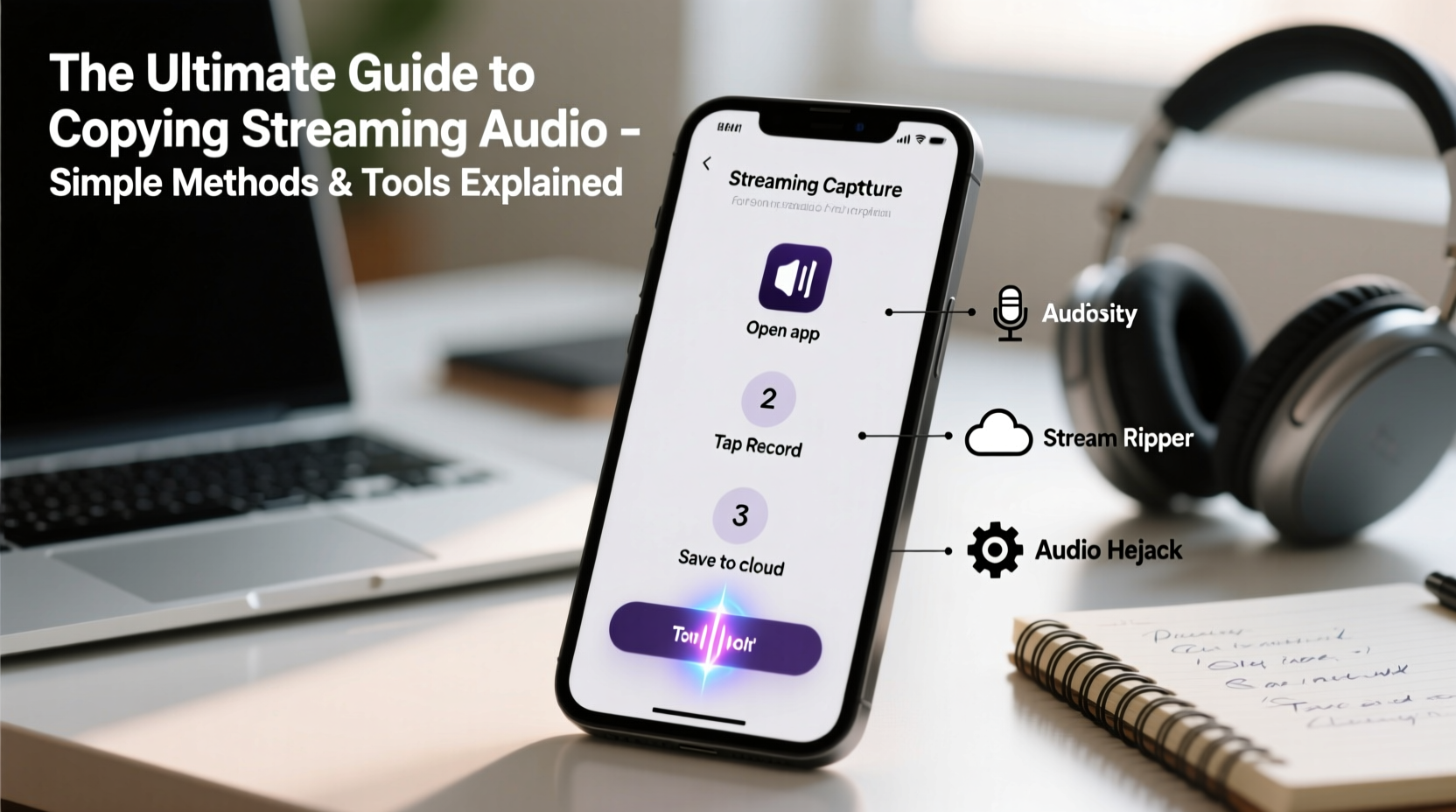
Streaming audio is data transmitted in real time from a server to your device. Unlike downloaded files, it isn’t stored locally by default. This means capturing it requires intercepting the audio signal as it plays—either at the system level, through browser extensions, or via dedicated recording applications.
It’s important to distinguish between recording audio output (what comes out of your speakers) and extracting raw audio streams (direct file capture). Most consumer-friendly methods fall into the first category, using loopback recording or virtual audio devices to save what your computer hears.
“Most streaming platforms encrypt or obfuscate direct downloads, so screen/audio capture remains the most viable method for end users.” — Dr. Alan Reeves, Digital Media Archivist
Top Methods for Copying Streaming Audio
There are several proven ways to record streaming audio, each suited to different technical comfort levels and use cases. The best method depends on your operating system, desired audio quality, and whether you need automation or batch processing.
1. System Audio Recording with Built-in Tools
Both Windows and macOS offer native capabilities to record system audio when paired with the right settings.
- Windows: Use Voice Recorder in combination with Stereo Mix (if enabled). Go to Sound Settings > Input > Manage audio devices > Enable \"Stereo Mix\" as a recording device. Then use any audio recorder that supports input selection.
- macOS: Built-in QuickTime Player allows audio capture when you select “Soundflower” or “BlackHole” as a virtual audio driver. These free tools route internal audio to recording apps.
2. Third-Party Desktop Applications
Dedicated audio capture software offers more control, scheduling, and format options.
Popular tools include:
- OBS Studio – Free, open-source, and powerful. Primarily used for video, but excels at audio-only recording. Can record multiple sources simultaneously and schedule sessions.
- Audio Hijack (macOS) – User-friendly interface with advanced routing. Allows filtering, tagging, and automatic file naming based on stream metadata.
- Freesoft Audio Capture – Lightweight Windows tool designed specifically for grabbing streaming audio with minimal CPU usage.
3. Browser Extensions and Web-Based Recorders
Some browser add-ons can record tab-specific audio, though functionality varies.
Extensions like Web Audio Recorder for Chrome allow direct capture of audio playing within a browser tab. These are ideal for short clips or podcast snippets but may struggle with DRM-protected content or background noise.
Web-based tools such as Online Voice Recorder or TwistedWave can also capture system audio if your browser permits microphone access to internal sound—a setting usually found in Site Permissions.
Recommended Tools Compared
| Tool | Platform | Cost | Best For | Limitations |
|---|---|---|---|---|
| OBS Studio | Win/macOS/Linux | Free | Long recordings, automation | Steep learning curve |
| Audio Hijack | macOS | Paid ($79) | Precision editing, metadata tagging | Mac only, expensive |
| Stereo Mix + Audacity | Windows | Free | Basic recording | Requires manual setup |
| BlackHole + QuickTime | macOS | Free | Simple capture | No editing features |
| Browser Extensions | All | Free | Short clips, quick saves | Unreliable with DRM |
Step-by-Step Guide: Recording Spotify Audio Using OBS Studio
While direct downloading from services like Spotify is against their Terms of Service, personal archival for non-distribution use is common. Here’s how to do it ethically and effectively:
- Install OBS Studio from obsproject.com (free).
- Open OBS and go to Settings > Audio. Set \"Desktop Audio\" as your source.
- Click the \"+\" under Sources and select Audio Output Capture.
- Choose your main audio device (e.g., Speakers or Headphones).
- Press the \"Start Recording\" button while playing your desired track or playlist.
- Stop recording when finished. The file saves automatically to your specified folder (usually Videos/Recordings).
- Convert to MP3 using a tool like Audacity or online converters if needed.
This method captures clean audio without external mic interference and works across most streaming platforms.
Legal and Ethical Considerations
Copying streaming audio exists in a gray area. While personal backups may seem harmless, distribution, resale, or mass downloading violates copyright laws and platform agreements.
- ✅ Permissible: Recording a live radio broadcast for personal study.
- ✅ Permissible: Saving a podcast episode you can’t access later due to geo-restrictions.
- ❌ Not Permitted: Uploading recorded songs to public servers or sharing them widely.
- ❌ Not Permitted: Bypassing DRM on subscription services for redistribution.
Mini Case Study: Preserving Rare Radio Interviews
Dr. Lena Patel, a cultural historian at McGill University, needed to archive a series of live BBC interviews with South Asian artists from the 1980s. Though available temporarily on BBC Sounds, they were scheduled for removal. Using OBS Studio, she recorded each 45-minute segment during playback, added timestamps and speaker notes, and stored them in her university’s research library under fair use guidelines for academic preservation. Her approach ensured accessibility for future scholars without violating copyright.
Essential Checklist Before Recording
Before hitting record, ensure your setup is optimized:
- Confirm your audio input source is correctly selected.
- Test volume levels to avoid clipping or faint playback.
- Close unnecessary apps to reduce background noise and CPU load.
- Set up adequate storage space—high-quality audio uses ~10MB per minute.
- Verify file format preferences (WAV for editing, MP3 for portability).
- Check legal permissions for the content being recorded.
- Label recordings immediately with date, source, and title.
Frequently Asked Questions
Can I copy audio from YouTube videos?
Yes, using screen/audio capture tools like OBS or dedicated downloaders that extract audio post-capture. Direct ripping tools may violate YouTube’s Terms of Service. Personal, non-commercial use is generally tolerated, but redistribution is not allowed.
Is it possible to record audio without background noise?
Absolutely. Use direct system capture instead of microphone recording. Tools like Audio Hijack or OBS isolate internal audio, eliminating fan noise, keyboard clicks, or ambient sounds.
Will recording streaming audio affect sound quality?
Not if done properly. High-bitrate capture (192kbps or higher) preserves fidelity. Avoid double compression—don’t convert lossy formats (like MP3) into other lossy formats repeatedly.
Final Thoughts and Next Steps
Capturing streaming audio doesn’t require advanced hacking skills or expensive gear. With the right tools and awareness of ethical boundaries, anyone can preserve meaningful audio content for personal use, education, or creative projects. The key is choosing a method that matches your technical environment and respecting the rights of creators and platforms.
Whether you're building a private music library, compiling research material, or saving fleeting internet moments, these techniques empower you to take control of digital audio in a responsible way.
🚀 Ready to start recording? Download OBS Studio today, test a 5-minute clip, and see how easy high-quality audio capture can be. Share your experience or ask questions in the comments below!