
Static noise during phone calls or while listening to audio can be more than just an annoyance—it can interfere with communication, damage professional credibility, and reduce the enjoyment of music or podcasts. Whether you're on an important business call or catching up with family, clear sound is essential. The good news: most static issues are fixable with the right approach. From hardware checks to software tweaks, this guide delivers practical, tested solutions to restore crisp, interference-free audio on your mobile device.
Understanding the Causes of Static Noise
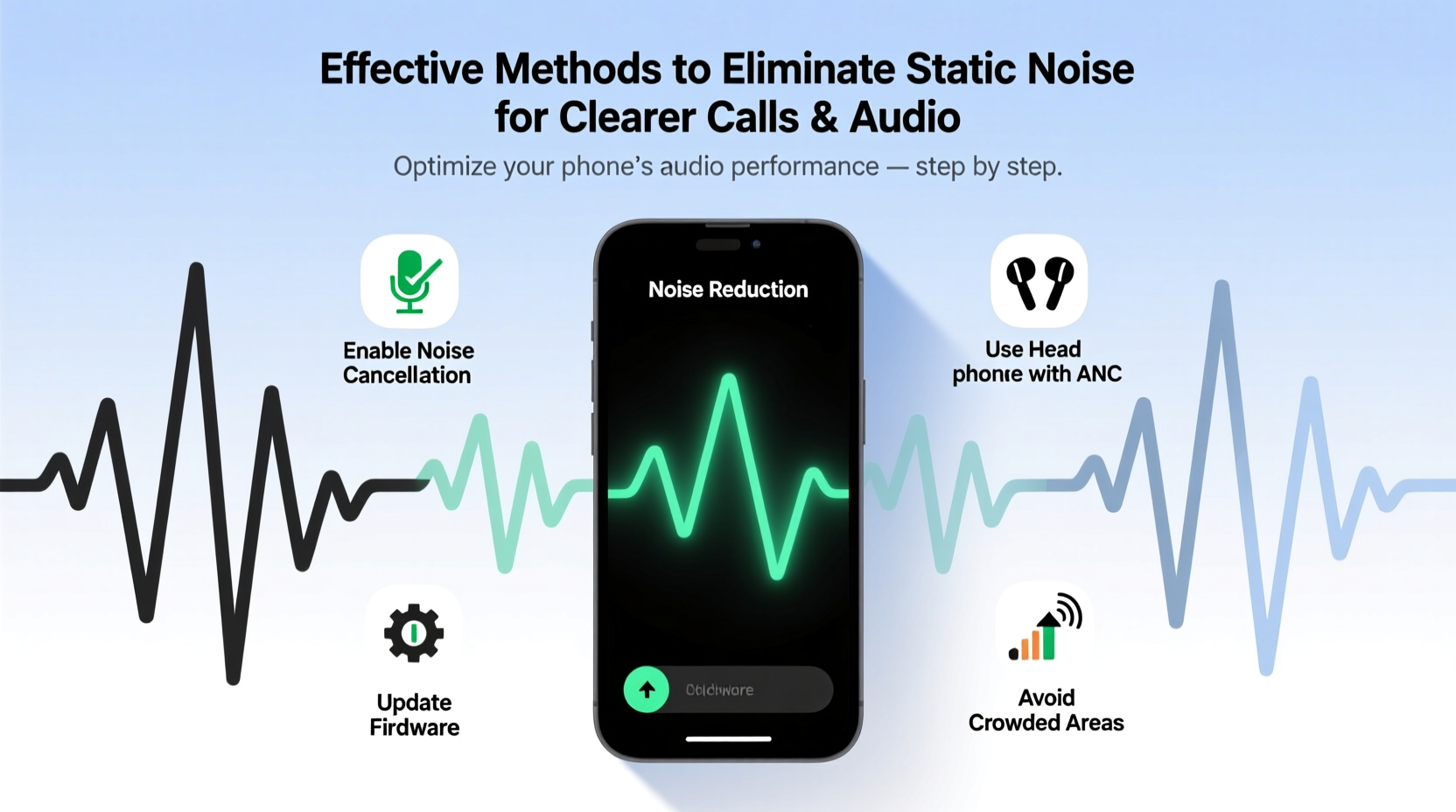
Before addressing static, it helps to understand where it comes from. Static manifests as crackling, buzzing, popping, or hissing sounds in your speaker, earpiece, or microphone. Common causes include:
- Dust and debris buildup in speaker grilles or charging ports
- Loose or damaged hardware, such as a frayed headphone jack (if applicable) or internal speaker issues
- Electromagnetic interference from nearby electronics or poor signal environments
- Outdated or buggy software affecting audio drivers or app performance
- Poor-quality accessories, like third-party earphones or chargers that introduce electrical noise
- Environmental factors, including dry air (which increases static electricity) or extreme temperatures
Identifying the root cause determines which solution will work best. In many cases, a combination of cleaning, settings adjustment, and environmental control resolves the issue.
Tip: Test both ends of a call—ask someone if they hear static when you speak. This helps determine whether the problem lies with your microphone or their device.Step-by-Step Guide to Eliminate Static Noise
Follow this systematic process to diagnose and resolve static issues efficiently:
- Restart your phone. A simple reboot clears temporary glitches in the operating system that may affect audio processing.
- Check for obstructions. Inspect the speaker, earpiece, and microphone openings for lint, dust, or moisture. Use a soft brush or compressed air to clean gently.
- Disconnect all accessories. Remove headphones, cases, and chargers. Some low-quality accessories introduce electrical noise into the audio circuit.
- Test audio in different apps. Play a video, make a voice memo, or use a call-forwarding service to see if static occurs across all functions or only in specific apps.
- Update your OS and apps. Software updates often include audio driver fixes and security patches that improve stability.
- Reset audio settings. On Android, go to Settings > System > Reset Options > Reset Wi-Fi, mobile & Bluetooth. On iOS, reset network settings via Settings > General > Transfer or Reset iPhone > Reset Network Settings.
- Boot in safe mode (Android). This disables third-party apps temporarily to check if a downloaded app is causing interference.
- Visit diagnostics. Use built-in tools like Samsung’s Device Care or Apple’s Diagnostic Mode to test speaker and mic functionality.
If static persists after these steps, consider deeper hardware or environmental troubleshooting.
Do’s and Don’ts: Best Practices for Audio Clarity
| Do’s | Don’ts |
|---|---|
| Clean speaker grilles regularly with a dry microfiber cloth or soft brush | Use sharp objects like pins or paperclips to remove debris—they can damage delicate components |
| Keep your phone away from magnets, microwaves, and high-voltage devices | Place your phone near strong sources of electromagnetic interference (e.g., power transformers) |
| Use manufacturer-certified headphones and chargers | Charge your phone with unbranded or counterfeit cables that may introduce electrical noise |
| Maintain moderate humidity levels (40–60%) in your environment | Leave your phone in extremely dry or hot conditions, which increase static charge buildup |
| Enable noise suppression features in calling apps (e.g., Google Duo, Zoom) | Ignore persistent static—early action prevents further damage |
Expert Insight: What Engineers Say About Mobile Audio Quality
“Even minor dust accumulation in the microphone mesh can distort input signals and create digital artifacts that users perceive as static. Regular maintenance is just as critical as software updates.” — Dr. Alan Reyes, Senior Acoustic Engineer at MobileSound Labs
Dr. Reyes emphasizes that mobile audio systems are highly sensitive. Modern phones use multiple microphones for noise cancellation, and if one is partially blocked, the algorithm fails to cancel background noise effectively—leading to perceived static or muffled sound. He recommends monthly inspection of all audio ports using a magnifying light for best results.
Real Example: Resolving Persistent Static in a Remote Work Setup
Sarah, a project manager based in Denver, began experiencing crackling sounds during Zoom calls. Her colleagues reported hearing intermittent static whenever she spoke. Initially, she assumed it was her internet connection. After testing on multiple networks and devices, she isolated the issue to her smartphone’s built-in microphone.
She followed the step-by-step guide above and discovered lint deeply embedded near the bottom microphone, used for noise cancellation. After carefully removing it with a soft-bristled brush, the static disappeared. She also switched to a certified USB-C headset for future meetings, ensuring consistent audio quality. Within 48 hours, her call clarity improved dramatically—verified by team feedback.
This case illustrates how a small physical obstruction can have a major impact on audio performance, especially in professional settings where reliability matters.
Tip: If you frequently carry your phone in pockets or bags, place a small silica gel packet nearby to reduce moisture and static buildup.When Hardware Repair Is Necessary
If all software and cleaning efforts fail, the issue may be internal. Common hardware-related causes include:
- Water damage affecting audio circuits (even if the phone seems dry)
- Loose internal wiring or disconnected speaker modules
- Faulty microphone chips due to manufacturing defects or aging
In such cases, professional repair is recommended. Authorized service centers can perform board-level diagnostics and replace components without voiding warranties. Avoid DIY repairs unless you’re experienced—modern smartphones have tightly integrated parts, and improper handling can worsen the issue.
FAQ: Common Questions About Static Noise
Why does static only happen during calls but not when playing music?
This usually indicates a problem with the primary or secondary microphone used for noise cancellation. During calls, both mics activate. If one is blocked or malfunctioning, the system can’t filter background noise properly, resulting in distortion or static.
Can software updates cause static noise?
Rarely, yes. While updates typically fix bugs, occasionally a new OS version introduces compatibility issues with audio drivers. If static appears immediately after an update, check forums for similar reports or roll back to a previous version if possible.
Is static a sign of a dying battery?
Not directly. However, a failing battery can cause voltage fluctuations that interfere with sensitive audio circuits. If your phone also shuts down unexpectedly or overheats, consider battery replacement alongside audio diagnostics.
Conclusion: Take Control of Your Phone’s Audio Quality
Static noise doesn’t have to be a permanent frustration. With regular maintenance, informed troubleshooting, and awareness of environmental factors, you can maintain crystal-clear audio on your mobile device. Start with simple fixes like cleaning and restarting, then progress to software resets and professional help if needed. Clear communication enhances every aspect of modern life—from personal relationships to career success.
💬 Have you fixed static noise on your phone? Share your experience or ask questions in the comments—your insight could help others achieve perfect audio clarity!