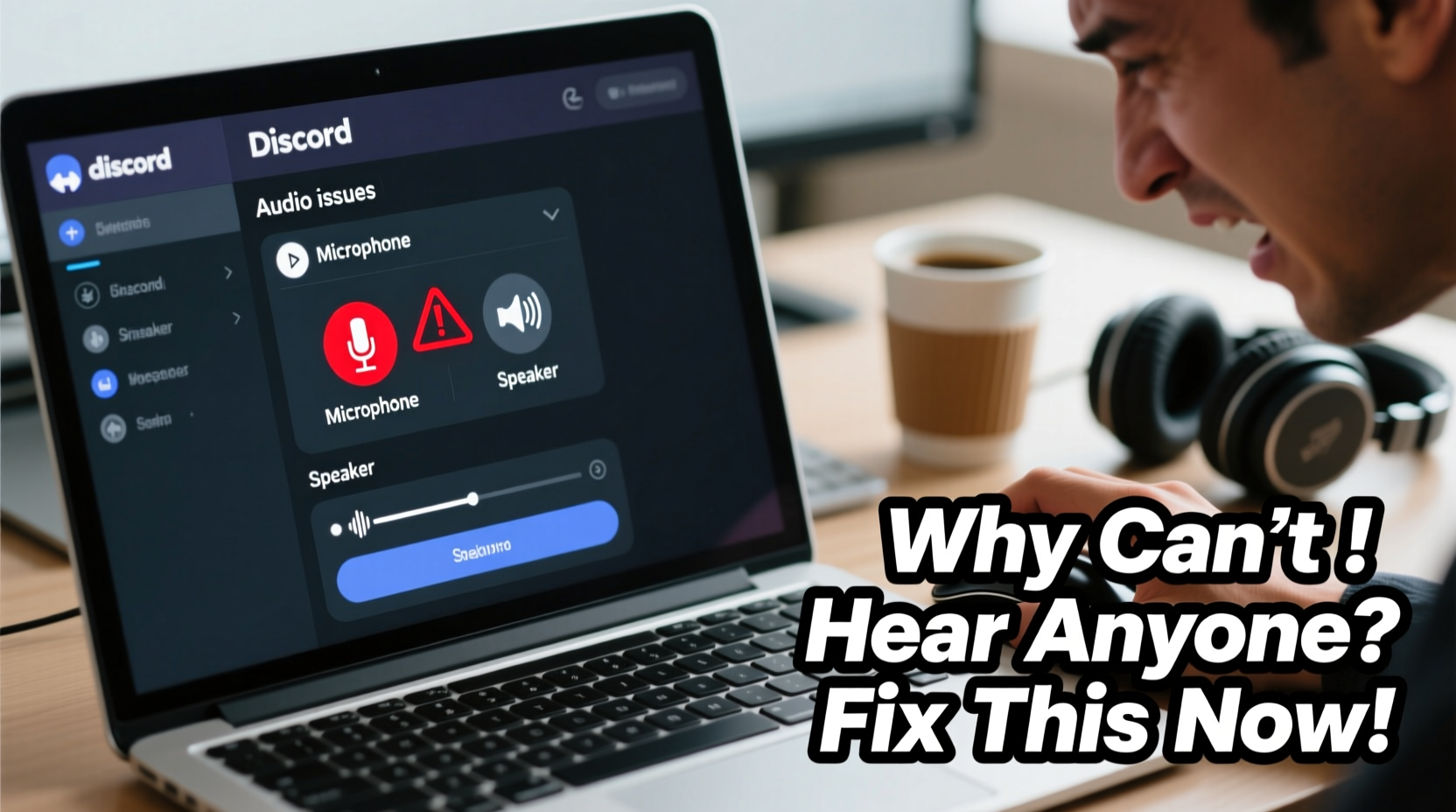
If you're in the middle of a crucial gaming session or team call and suddenly realize you can’t hear anyone on Discord, frustration sets in fast. You’re not alone—audio problems are among the most common complaints from Discord users across Windows, macOS, Linux, and mobile platforms. The good news is that most issues have straightforward solutions. Whether it’s a misconfigured setting, driver problem, or app conflict, this guide walks you through proven troubleshooting steps to get your audio working again.
Understanding Common Causes of Audio Failure
Before jumping into fixes, it helps to understand what might be causing the issue. Discord relies on several components: your operating system's audio stack, hardware (speakers/headphones), drivers, and internal app settings. A breakdown in any one area can result in silence when you expect voices.
Common root causes include:
- Incorrect output device selected in Discord
- Muted speakers, headphones, or application volume
- Outdated or corrupted audio drivers
- Conflicts with other applications using audio (e.g., browsers, games)
- Hardware malfunction (faulty cables, damaged ports)
- Operating system-level audio bugs or permissions
- Corrupted Discord installation or cache
Pinpointing the exact cause often requires systematic testing—starting simple and moving toward deeper technical checks.
Tip: Always test your headphones or speakers with another app (like YouTube or Spotify) before assuming the issue is Discord-specific.Step-by-Step Guide to Restore Audio in Discord
Follow this logical sequence to identify and resolve the problem efficiently.
- Check physical connections: Ensure your headphones or speakers are properly plugged in. Try a different USB/audio port if possible.
- Verify system volume levels: Click the speaker icon in your taskbar (Windows) or menu bar (macOS). Confirm that:
- The master volume is up and not muted
- Your chosen output device is active
- Discord isn’t individually muted
- Test audio elsewhere: Play a video or music file. If no sound plays outside Discord, the issue lies with your OS or hardware—not Discord.
- Restart Discord: Close the app completely via Task Manager (Ctrl+Shift+Esc), then relaunch it.
- Reboot your device: A full restart resolves temporary glitches affecting audio routing.
Adjust Discord Voice & Video Settings
Navigate to User Settings > Voice & Video in Discord and verify these key options:
- Output Device: Make sure the correct speaker or headset is selected under “Output Device.” Test playback using the “Let’s Check” button.
- Input Sensitivity: While this affects mic input, automatic gain settings can sometimes interfere with overall audio processing.
- Attenuation: Disable “When a user speaks” under “Audio Subsystem” if others become quieter when sharing media.
- Quality Slider: Set bitrate to at least 96 kbps for clearer transmission.
“Over 70% of reported ‘no audio’ cases stem from incorrect output selection or system-wide muting.” — Tech Support Lead, Discord Community Forum
Troubleshooting Driver and System Conflicts
If basic checks don’t work, focus shifts to drivers and background processes.
Update or Reinstall Audio Drivers
On Windows:
- Press Win + X and select Device Manager.
- Expand “Sound, video and game controllers.”
- Right-click your audio device (e.g., Realtek High Definition Audio) and choose Update driver.
- Select “Search automatically for updated driver software.”
- If no update is found, try uninstalling the driver and restarting your PC—the system will reinstall it upon boot.
For macOS users, ensure you're running the latest version of the OS, as Apple bundles audio fixes within updates.
Disable Exclusive Mode (Windows)
Sometimes, apps lock exclusive access to audio devices, blocking others like Discord.
Go to:
Settings > System > Sound > Advanced sound options > App volume and device preferences
Click on “More options” next to Discord, then disable both:
- Allow apps to take exclusive control of this device
- Give exclusive mode apps priority
Clear Discord Cache and Reset Client
Built-up cache files can corrupt audio rendering. Clear them without losing account data.
How to Clear Discord Cache (Desktop)
- Close Discord completely (check Task Manager).
- Open Run (Win + R) and type
%appdata%, press Enter. - Navigate to Discord > Cache. Delete all contents inside this folder.
- Repeat for
%localappdata%\\Discord\\Cacheand%localappdata%\\Discord\\GPUCache. - Relaunch Discord—it will rebuild clean cache files.
This process often resolves silent channel issues caused by corrupted temporary data.
Checklist: Quick Fixes for No Audio in Discord
Use this checklist for rapid diagnosis:
| Action | Status | Notes |
|---|---|---|
| Headphones/speakers connected and powered? | [ ] Yes / [ ] No | Try alternate hardware if unsure |
| System volume unmuted and raised? | [ ] Yes / [ ] No | Check taskbar icon and app-specific volumes |
| Correct output device selected in Discord? | [ ] Yes / [ ] No | Test with “Let’s Check” feature |
| Other apps produce sound? | [ ] Yes / [ ] No | If not, issue is system-wide |
| Discord restarted after changes? | [ ] Yes / [ ] No | Force quit via Task Manager |
| Audio drivers updated? | [ ] Yes / [ ] No | Especially important after OS updates |
Mini Case Study: Gamer Regains Voice Chat After Weeks of Silence
Alex, a competitive Valorant player, struggled for three weeks with no audio in Discord voice channels. He could speak, but teammates were silent. Initial troubleshooting focused on Discord settings—he toggled devices, reinstalled the app, even used the web version. Nothing worked.
The breakthrough came when he opened Windows Sound Settings and noticed his Sennheiser headset appeared twice: once as “Headset” and once as “Headphone (Sennheiser GSP 300).” Discord was defaulting to the wrong profile. After manually selecting the correct output and disabling exclusive mode, audio returned instantly.
The lesson? Multiple device entries confuse apps. Always double-check which endpoint is active.
Frequently Asked Questions
Why can I hear game audio but not Discord?
This typically means Discord is routed to a different output than your game. For example, your game uses HDMI audio (to a monitor), while Discord defaults to onboard speakers. In Discord settings, manually set the output to match your primary listening device.
Does using Bluetooth headphones cause issues?
Yes. Bluetooth has higher latency and limited bandwidth for high-quality voice streams. Some headsets switch to mono during calls, reducing clarity. Use wired connections for reliable performance. If you must use Bluetooth, pair via 5.0+ and avoid running other wireless devices nearby.
I’m on mobile—why can’t I hear anyone on Discord?
First, check if Do Not Disturb or Focus mode is enabled. Also, ensure Discord has permission to play audio. On iOS, go to Settings > Discord > enable “Music and Sounds.” On Android, check app permissions under Sound or Microphone access. Lastly, remove any case obstructing the speaker grille.
Conclusion: Take Control of Your Audio Experience
Not being able to hear others on Discord doesn’t have to derail your communication or gaming experience. Most issues are fixable with methodical troubleshooting—from checking simple volume settings to clearing deep-seated cache conflicts. The key is starting broad and narrowing down possibilities without skipping foundational steps.
With the right approach, you’ll not only solve today’s silence but also build the knowledge to prevent future disruptions. Apply these strategies consistently, and keep your voice channels clear and reliable.
💬 Was this guide helpful? Share your own solution or leave a comment to help fellow users overcome Discord audio issues!