In modern entertainment setups, a tangle of cables is often the price of high-tech convenience. Gaming consoles, streaming boxes, soundbars, routers, and monitors all require power and data connections—quickly turning your media center into a chaotic web of cords. Beyond being unsightly, disorganized cables increase fire risks, reduce airflow around electronics, and make troubleshooting a nightmare. The good news? A few strategic steps can transform cable chaos into a clean, efficient system. This guide walks through proven methods, tools, and real-world practices to help you master cable management behind your TV and gaming station.
Why Cable Organization Matters
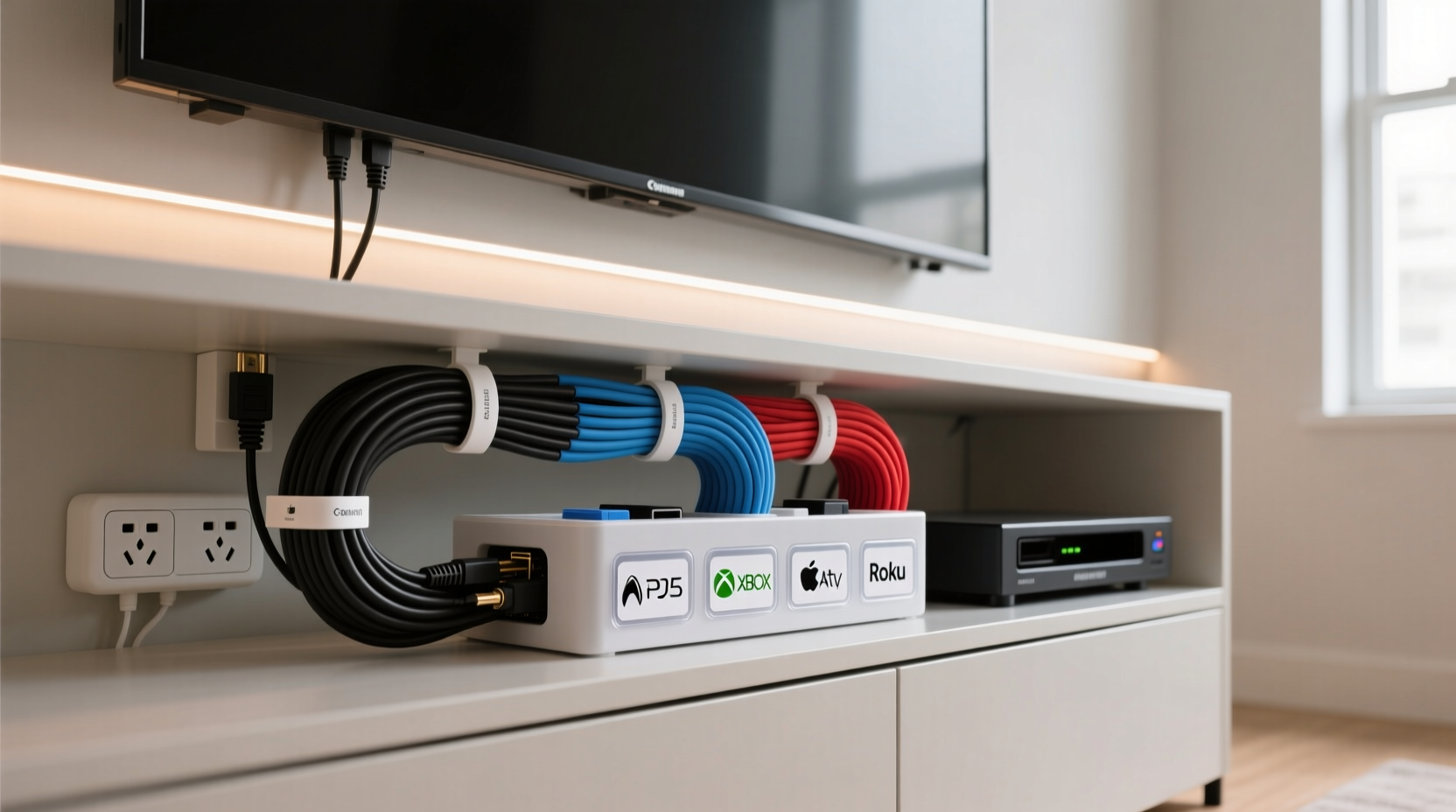
Most people overlook cable clutter until it becomes a problem. But unmanaged wires do more than look bad—they create functional issues. Tangled cords are harder to trace during troubleshooting, making it difficult to identify which cable connects to which device. They also restrict ventilation, leading to overheating of sensitive components like game consoles and AV receivers. Dust accumulates faster in tangled bundles, further reducing performance and lifespan.
A well-organized setup improves not only aesthetics but also safety and usability. When each cable has a designated path and label, upgrades, repairs, and reconfigurations become significantly easier. As home entertainment systems grow more complex—with 4K TVs, surround sound, multiple streaming platforms, and next-gen consoles like the PlayStation 5 and Xbox Series X—effective cable management is no longer optional; it’s essential.
Tip: Always leave 6–12 inches of slack in your cables to allow for future adjustments without strain.Essential Tools for Effective Cable Management
Successful organization starts with the right tools. While some solutions are low-cost and DIY-friendly, others offer long-term durability and scalability. Here’s a breakdown of what works best:
- Cable sleeves or braided wraps: Bundle multiple cords together neatly. Ideal for grouping HDMI, power, and optical cables running from your console to the TV.
- Cable clips and adhesive mounts: Secure cables along walls, furniture edges, or behind entertainment centers. Reusable options allow flexibility if you rearrange later.
- Velcro straps (not zip ties): Use reusable Velcro instead of plastic zip ties. They’re gentler on cables and easy to adjust or remove.
- Cable raceways: Hollow plastic channels that conceal wires along baseboards or walls. Paintable versions blend seamlessly into room decor.
- Label makers or color-coded tags: Label both ends of each cable so you know exactly what goes where—even after months of use.
- Power strip with surge protection: Choose one with angled outlets or side-facing plugs to maximize space behind tight-fitting furniture.
Investing in quality accessories pays off over time. Cheap zip ties may snap under tension, and flimsy clips often lose adhesion. Opt for durable, modular solutions that support future expansion as you add new devices.
Step-by-Step Guide to Organizing Your Entertainment Center Cables
Follow this sequence to systematically declutter and reorganize your entire setup—from unplugging old gear to final labeling.
- Power down and unplug everything. Safety first. Turn off all devices and disconnect them from outlets. Take photos of current connections before detaching anything—this helps during reassembly.
- Sort and identify each cable. Lay out all cables on the floor. Test functionality by plugging them back into devices briefly. Discard frayed, damaged, or obsolete ones (like composite AV cables if you’re using HDMI).
- Map your ideal layout. Sketch a simple diagram showing where each device will sit: TV at the top, console below, soundbar beneath, router nearby. Plan cable paths accordingly.
- Group cables by function. Separate power cords, HDMI lines, Ethernet cables, and audio connectors. Use different colored Velcro bands or labels for quick identification.
- Route cables efficiently. Run power cords along one side of the cabinet, data cables on the other. Avoid crossing power and signal cables at sharp angles to reduce electromagnetic interference.
- Secure and bundle. Use clips or raceways to keep cables flush against surfaces. Wrap grouped cords in a sleeve or spiral wrap for a clean finish.
- Label every connection. Attach small tags or use a label printer to mark each end: “PS5 to TV,” “Soundbar Power,” “Router LAN.”
- Test and fine-tune. Plug everything back in, power up, and verify all functions work. Adjust slack or routing if needed.
Do’s and Don’ts of Cable Management
| Do’s | Don’ts |
|---|---|
| Use Velcro instead of zip ties for flexible bundling. | Over-tighten bundles, which can damage internal wiring. |
| Leave slack for movement and maintenance. | Run power and Ethernet cables parallel for long distances (can cause interference). |
| Label both ends of each cable. | Hide critical connections behind immovable furniture without access points. |
| Use surge protectors with spaced outlets. | Plug too many high-draw devices into one strip (risk of overload). |
| Install raceways for wall-mounted TVs. | Allow cables to drape loosely where pets or foot traffic can pull them. |
Real Example: Transforming a Cluttered Living Room Setup
Consider Mark, a gamer and movie enthusiast who recently upgraded his living room with a 75-inch OLED TV, PS5, Apple TV 4K, Sonos soundbar, and mesh Wi-Fi system. Initially, he plugged everything directly behind the TV stand, resulting in a dense knot of cables. Every time he wanted to swap inputs or restart a device, he had to crawl behind the cabinet and guess which cord belonged to which gadget.
After spending two hours following the step-by-step process above, Mark achieved a dramatic transformation. He installed an under-shelf cable tray to route HDMI and power lines neatly downward. All cords were grouped: black Velcro for power, blue for HDMI, red for Ethernet. Each was labeled with heat-shrink labels. He mounted a slim power strip vertically beside the cabinet using adhesive brackets, freeing up rear outlet space. Finally, he ran a single raceway from the TV up to the ceiling corner, hiding the main HDMI and power feed.
The result? A minimalist look, faster troubleshooting, and improved airflow around his PS5—reducing fan noise and temperature. Most importantly, his partner praised the change, saying the room finally felt “finished” rather than tech-heavy.
“Cable management isn’t about perfection—it’s about intentionality. Even modest improvements can dramatically enhance user experience and device longevity.” — Jordan Lee, Home Theater Systems Designer
Advanced Tips for Gamers and Streamers
For serious gamers and content creators, cable organization extends beyond appearance. Performance and reliability are paramount. Consider these advanced strategies:
- Dedicated network line: Run a direct Cat6 Ethernet cable from your router to your console or streaming box. Avoid Wi-Fi congestion and ensure stable ping for online play and 4K streaming.
- Separate power circuits: If possible, plug high-performance devices (console, PC, router) into different circuits to avoid voltage drops during peak usage.
- Use fiber optic HDMI cables for long runs: Unlike copper, they don’t degrade over distance and resist interference—ideal for wall-mounted setups over 10 feet.
- Mount a small patch panel: Behind your media cabinet, install a 4-port HDMI switch or Ethernet hub to centralize connections and minimize swapping.
- Wireless alternatives: Where feasible, replace physical connections with wireless solutions—Bluetooth headsets, Wi-Fi speakers, or Miracast streaming—to reduce cable load.
Checklist: Quick Start for Cable Cleanup
Use this checklist to get organized in under an hour:
- ✅ Unplug all devices and take photos of current setup
- ✅ Remove damaged or unused cables
- ✅ Group cables by type (HDMI, power, Ethernet, etc.)
- ✅ Label both ends of each cable
- ✅ Install adhesive clips or raceways for routing
- ✅ Bundle cords with Velcro straps or sleeves
- ✅ Mount power strip in accessible, ventilated location
- ✅ Reconnect devices and test all functions
- ✅ Store spare cables in a labeled container
Frequently Asked Questions
How do I hide cables without drilling holes?
You can use adhesive-backed raceways, flat cord covers that stick to baseboards, or fabric cable sleeves routed behind furniture. For wall-mounted TVs, consider a \"no-drill\" mounting kit with a hollow column that conceals wires inside a decorative cover.
Can I use zip ties safely?
Only if used carefully. Never overtighten, as this can compress insulation and damage conductors. Opt for reusable Velcro ties instead—they offer the same neatness without risk. If you must use zip ties, choose soft nylon versions with release tabs.
What’s the best way to manage console controller charging cables?
Use a dedicated charging dock with built-in cord management. Route the USB cable through a clip or grommet to prevent dangling. Alternatively, mount a small magnetic cable holder near your seating area for easy access and tangle-free storage.
Final Thoughts: A Clean Setup Is a Smarter Setup
Organizing cables for gaming consoles and streaming devices isn’t just about tidiness—it’s about creating a reliable, safe, and scalable entertainment ecosystem. Whether you’re setting up a new console or revamping an aging system, taking control of your cables enhances both form and function. The time invested today saves frustration tomorrow when you need to troubleshoot, upgrade, or simply enjoy a clutter-free living space.
Start small: pick one device, label its cables, and secure them neatly. Then expand outward. Over time, these incremental changes build a seamless, professional-grade setup that supports your digital lifestyle without compromise.
🚀 Ready to reclaim your entertainment space? Grab a roll of Velcro, a label maker, and 60 minutes this weekend. Your future self—and your PS5’s cooling fans—will thank you.